Overview #
Outfy’s Shoppable Pages feature helps you turn your Instagram and TikTok profiles into a convenient shopping destination. Instead of directing followers to your store’s homepage, you can share one link that displays your recently posted products and allows shoppers to visit the product pages directly on your store.
Follow this guide to create your Shoppable Page in Outfy, customize its appearance, and add the link to your Instagram or TikTok profile.
Create Your Shoppable Page in Outfy #
Step 1: Open Shoppable Pages
- Log in to your Outfy account.
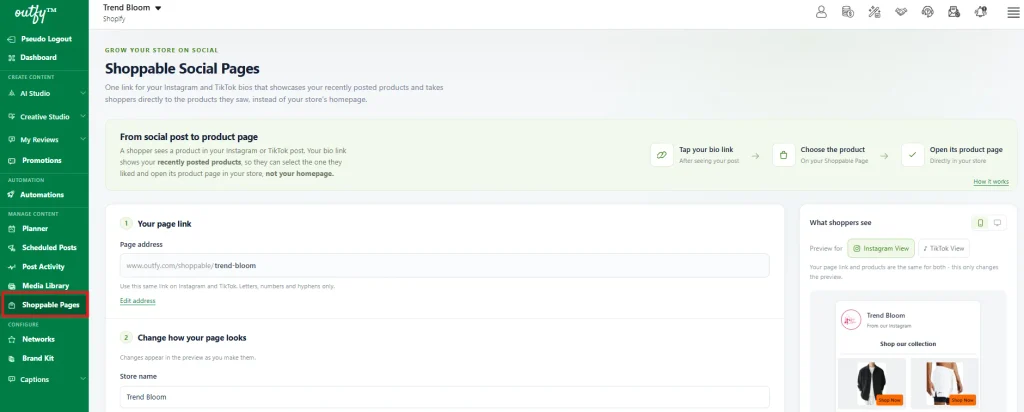
- From the left-hand menu, go to Shoppable Pages.
- You will find the settings to create and customize your page.
Step 2: Set Your Page Link
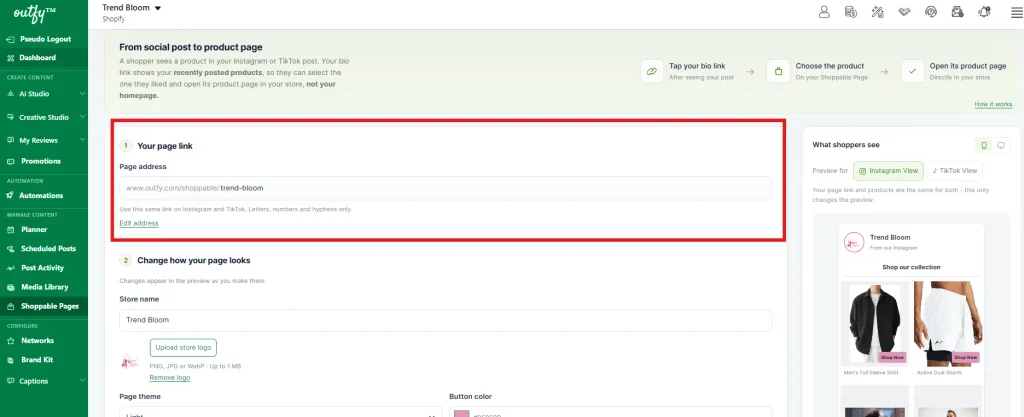
- Under Your page link, you can customize the web address for your Shoppable Page.
- Locate the Page address field.
- Enter your preferred page name or URL ending. For example, trend-bloom.
- Your link will look like this: www.outfy.com/shoppable/trend-bloom.
Important: Use only letters, numbers, and hyphens in the page address. Choose a simple, recognizable name that represents your store, as you will share this link on Instagram and TikTok.
Step 3: Customize Your Shoppable Page
Under Change how your page looks, you can personalize the appearance of your page to match your store’s branding. Your changes will appear in the preview as you make them.
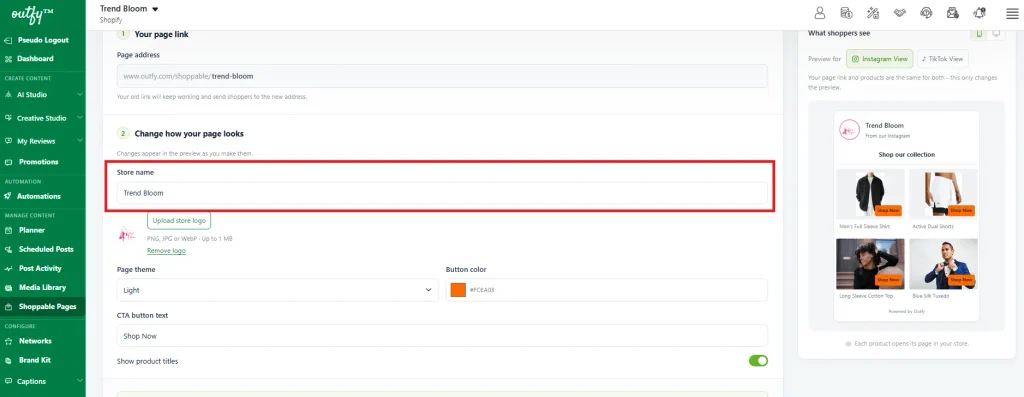
A. Add your store name
Enter your store name in the Store name field. This name will appear at the top of your Shoppable Page.
B. Upload your store logo
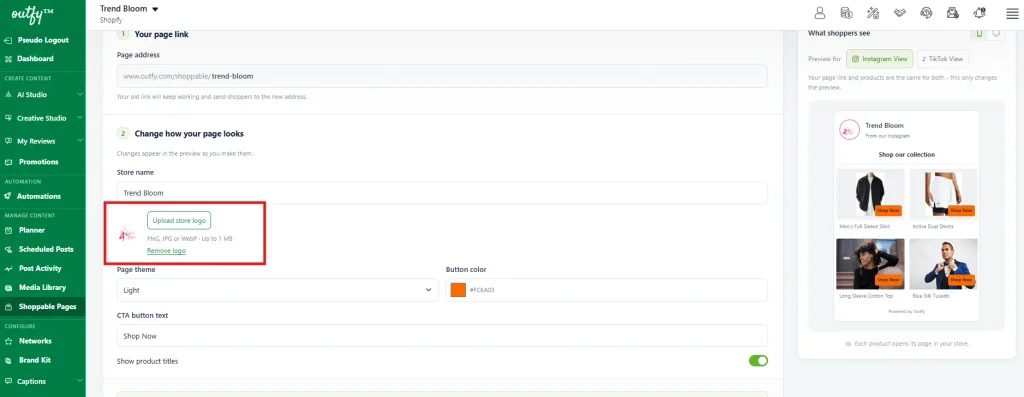
Click Upload store logo to add your store’s logo.
- Supported formats: PNG, JPG, and WebP.
- Maximum file size: 1 MB.
Adding your logo helps shoppers recognize your brand when they open the page.
C. Choose a page theme
Select a theme from the Page theme dropdown:
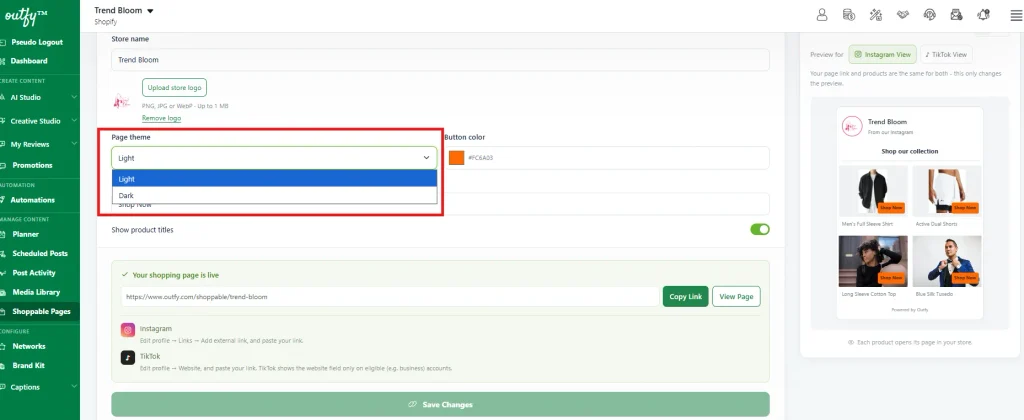
- Light: Displays your page with a light background.
- Dark: Displays your page with a dark background.
Choose the theme that best suits your brand’s visual style.
D. Customize the button color
Use the Button color option to change the color of the buttons displayed on your Shoppable Page.
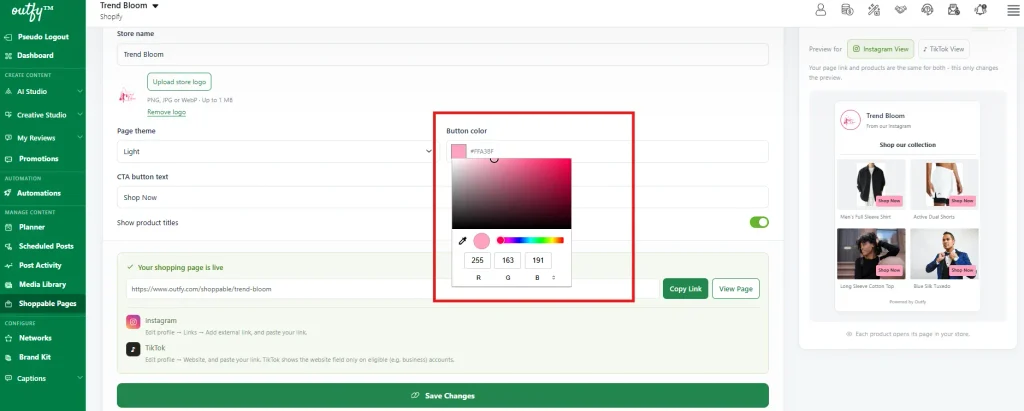
You can choose a color that matches your brand or enter a color’s hexadecimal code. For example, #FFA3BF represents the orange button color shown in the screenshot.
E. Customize the call-to-action (CTA) text
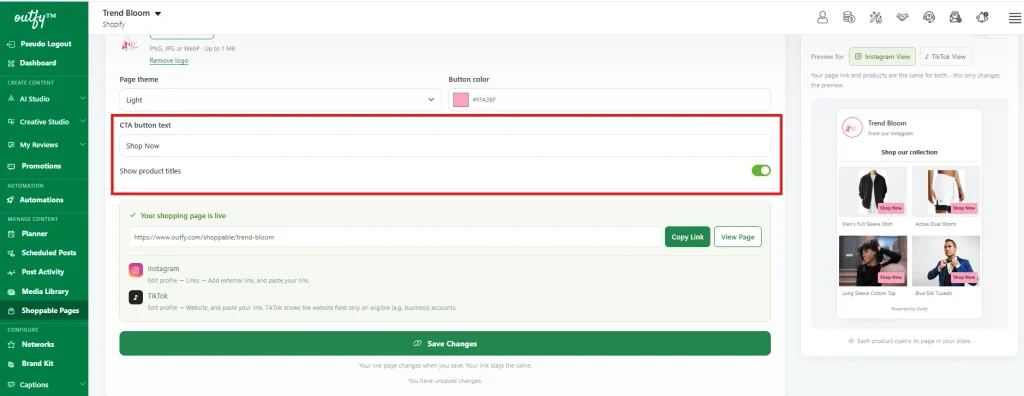
In the CTA button text field, enter the text you want shoppers to see on your product buttons.
For example:
- Shop Now
- Buy Now
- View Product
Choose a short, clear phrase that encourages shoppers to explore your products.
F. Show or hide product titles
Use the Show product titles toggle to decide whether product names appear below the product images.
Keeping product titles visible can help shoppers identify the products they want to explore.
Step 4: Preview Your Shoppable Page
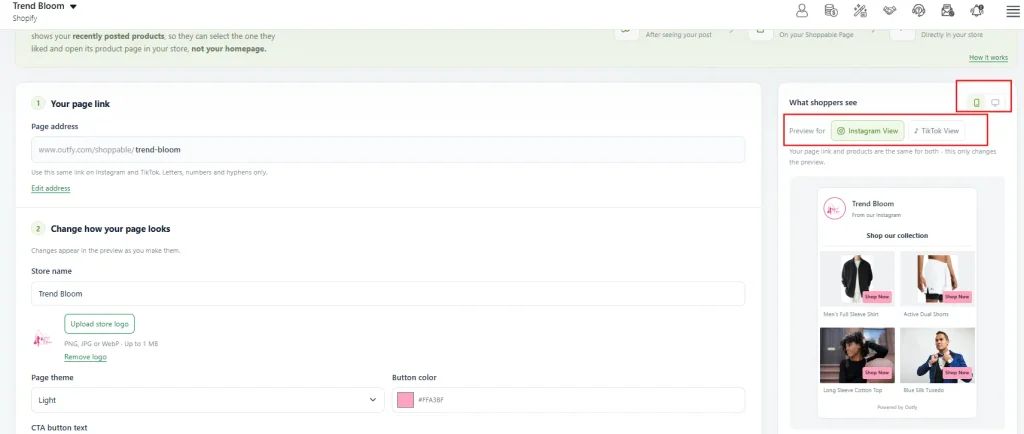
On the right side of the settings page, you will find the What shoppers see preview.
You can switch between:
- Instagram View: Preview how your page will look to visitors coming from Instagram.
- TikTok View: Preview how your page will look to visitors coming from TikTok.
You can also switch between mobile and desktop previews, where available, to check the page layout.
Review the store name, logo, product images, product titles, and button appearance. Make any necessary changes before creating your page.
Step 5: Create Your Shoppable Page
Once you have finished customizing your page:
- Review your page address and design.
- Click Create Shoppable Page at the bottom of the settings page.
- Your Shoppable Page will be created and made available at the link displayed above.
- If you have already created your Shoppable Page, while editing it again, simply click Save Changes after making any further customizations.
Keep your Shoppable Page link handy. You will need it when adding the link to your Instagram and TikTok profiles.
Add Your Shoppable Page Link to Instagram #
Once you have created your Shoppable Page in Outfy, add its link to your Instagram profile so visitors can easily discover your products.
Important: Instagram website links can be edited through the mobile app. You cannot edit this link directly from Instagram’s desktop website. However, once you add and save the link using your mobile device, it will appear on your public profile and can be accessed by visitors on mobile, desktop, and other devices.
Step 1: Open Your Instagram Profile
- Open Instagram on your mobile device.
- Navigate to your profile.
- Tap Edit profile.
Step 2: Open the Links Section
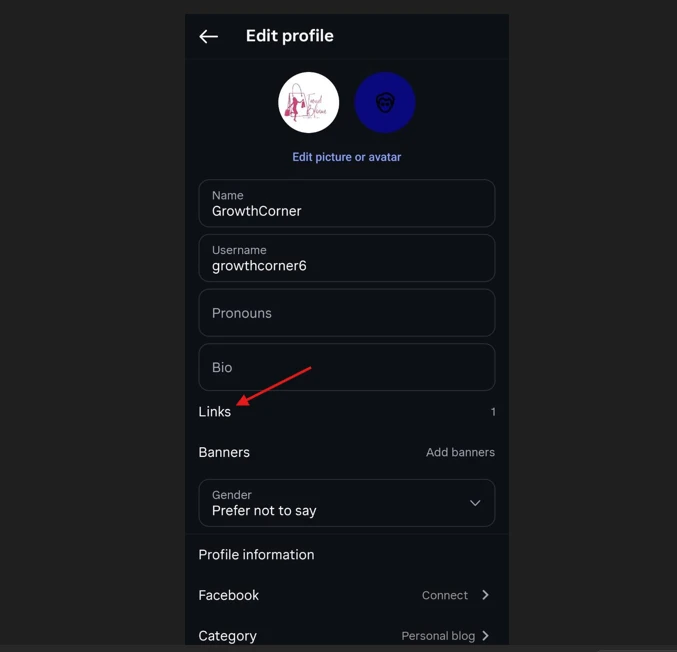
- Under your profile settings, locate Links.
- Tap Links to manage the links displayed on your profile.
- Select Add external link or Add link, depending on your Instagram app version.
Step 3: Enter Your Shoppable Page Link
- On the Add link screen
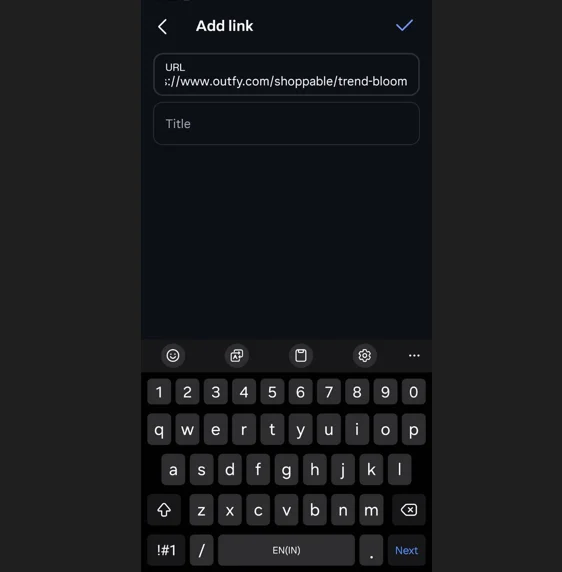
- In the URL field, paste the Shoppable Page link you created in Outfy. For example, https://www.outfy.com/shoppable/trend-bloom.
- In the Title field, enter a descriptive name for the link, such as:
- Shop Our Products
- Shop Our Collection
- Explore Our Store
- Tap the checkmark or save option to save the link.
Step 4: Verify the Link on Your Instagram Profile
Return to your Instagram profile and check that the link appears below your profile information.
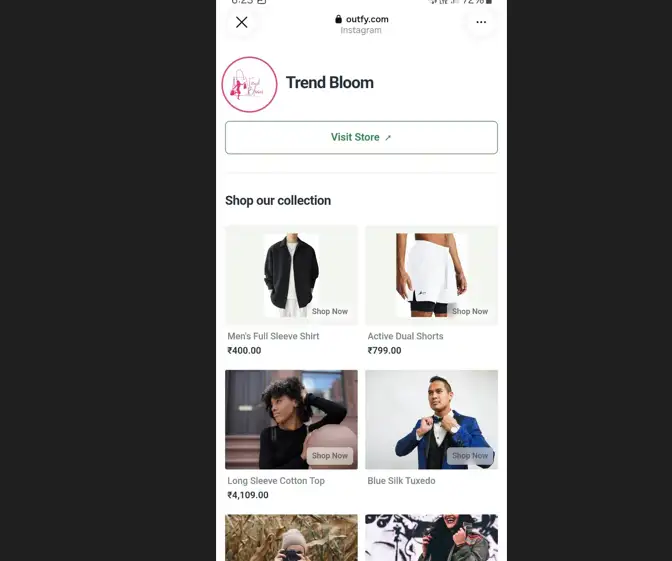
Tap the link to confirm that it opens your Outfy Shoppable Page and displays your products correctly.
Visitors can now open the link from your Instagram profile, browse the products displayed on your Shoppable Page, and select a product to visit its page in your online store
Add Your Shoppable Page Link to TikTok #
Once you have created your Shoppable Page in Outfy, add its link to your TikTok profile so visitors can browse your products and visit your online store.
Note: TikTok allows website links on profiles with at least 1,000 followers or a Verified Business Account. Link availability depends on your account’s eligibility.
Step 1: Open Your TikTok Profile
Open TikTok on your mobile device and tap Profile at the bottom-right corner.
Step 2: Edit Your Profile
Tap Edit profile to access your profile settings.
Step 3: Add Your Shoppable Page Link to Your Bio
- Locate the Bio field in your profile settings.
- Paste your Outfy Shoppable Page link into the Bio field. For example: https://www.outfy.com/shoppable/trend-bloom.
- Tap Save to apply your changes.
Step 4: Verify Your Link
Return to your TikTok profile and check that your bio displays the link. If TikTok makes it clickable on your account, tap it to confirm that your Outfy Shoppable Page opens correctly and displays your products.
Important: A URL entered in the Bio field may appear as plain text rather than a clickable link. To make your Shoppable Page accessible directly from your profile, eligible accounts can add it through Edit profile → Links → Add → Website and follow the on-screen instructions.
Once your link is accessible, visitors can browse your products and select an item to visit its product page on your online store.
Important: If you don’t see the option to add a website link, check whether your TikTok account meets the eligibility requirements. Once your link is available, make sure it directs visitors straight to your Shoppable Page so they can discover your products easily.
How Shoppable Pages Work for Your Customers #
Once your Shoppable Page is live and linked to your social media profile, the shopping journey is simple:
- Discover your profile: A visitor finds your store through an Instagram or TikTok post.
- Tap your profile link: The visitor opens your Shoppable Page using the link in your bio.
- Browse your products: The visitor explores the products displayed on the page.
- Select a product: The visitor taps a product or its call-to-action button.
- Visit your online store: The visitor is directed to that product’s page on your store, where they can learn more and proceed with their purchase.
This gives visitors a direct path from your social media profile to the products they are interested in.
Start turning your social media profile visits into shopping opportunities with Outfy Shoppable Pages. Create your page, customize it to match your brand, and make it easier for your followers to discover your products and visit your online store.