Introduction #
The Custom Upload feature in Outfy allows you to upload and share a single image or video directly from your computer. This option is useful when you want to post content that is not linked to any product.
Note: Ensure your social media accounts are connected to Outfy before uploading content.
Log in to Outfy #
Go to outfy.com and log in to your account.
Go to Media Library #
From the left-hand menu, click on Media Library. On the Manage Content section
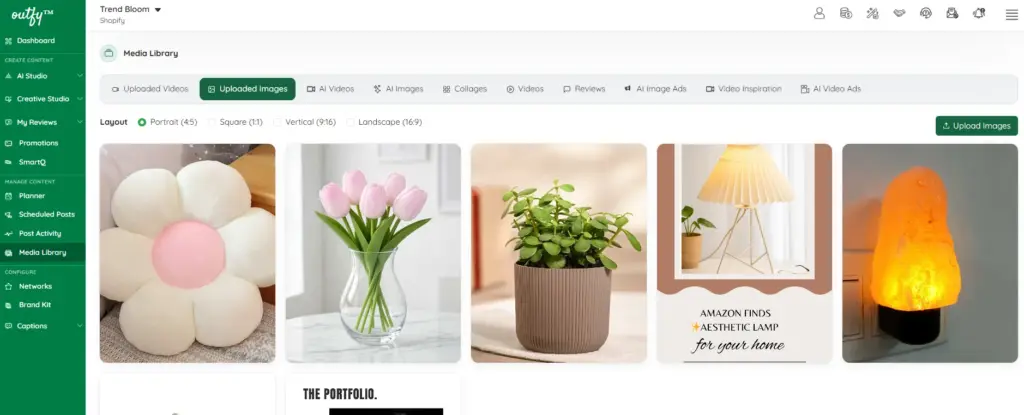
Inside Media Library, you will see multiple tabs such as:
- Uploaded Videos
- Uploaded Images
- AI Videos
- AI Images
- Collages
- Videos
- Reviews
The AI Videos, AI Images, Videos, Collages and Reviews tabs contain all the generated content you’ve created in Outfy. You can view and share these directly from the Media Library to your connected social media accounts.
Choose:
- Uploaded Images to upload images
- Uploaded Videos to upload videos
Then click:
- Upload Images or Upload Videos (top right button)
Go to Uploaded Videos #
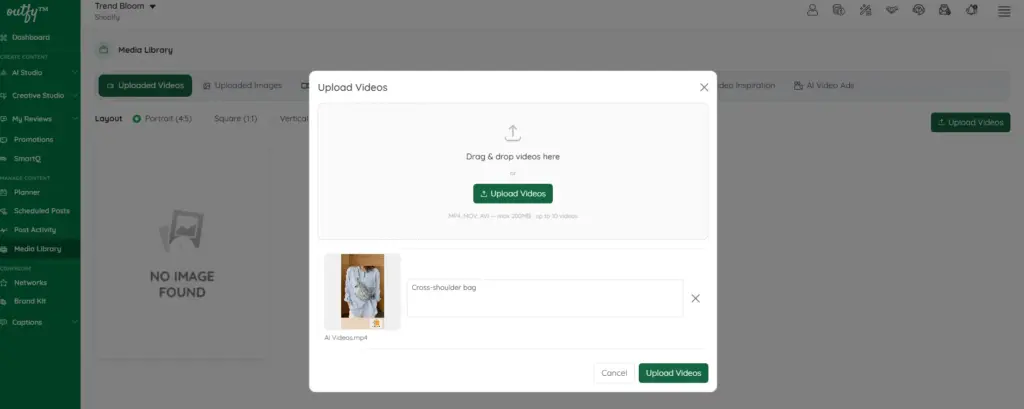
- Click Upload Videos.
- Drag and drop your video into the upload area or click Upload Videos to browse your computer.
- After selecting the video, enter a Title in the text field provided.
- Adding a title is required because Outfy uses it to generate relevant AI captions when you create the Videos
- Choose a clear and descriptive title that reflects the video’s content. For example: White cotton dress for summer or Modern kitchen organization tips.
- Click Upload Videos to add the video to your Media Library.
Supported video formats:
- MP4
- MOV
- AVI
Maximum file size: 200 MB per video
Maximum upload: Up to 10 videos at a time
Go to Uploaded Images #
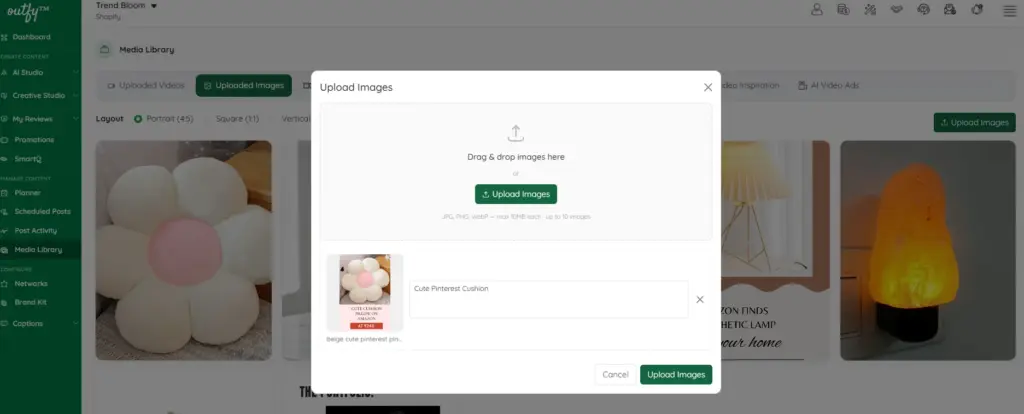
- Click Upload Images.
- Drag and drop your image into the upload area or click Upload Images to browse your computer.
- After selecting the image, enter a Title in the text field provided.
- The title helps Outfy understand your content and is used to automatically generate AI-powered captions when you share the image.
- Use a short, descriptive title that clearly explains what the image is about. For example: Brown boho interior lamp or Summer floral dress.
- Click Upload Images to save the image to your Media Library.
Supported image formats:
- JPG
- JPEG
- PNG
- WebP
Maximum file size: 10 MB per image
Maximum upload: Up to 10 images at a time
Share or Schedule #
When you’re ready:
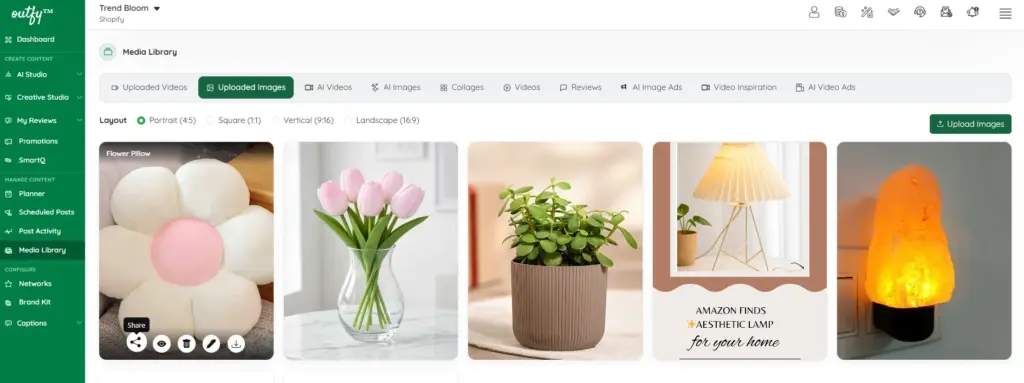
- Click Post Now to publish immediately, or
- Set a date and time to Schedule the post for later.