Table of Contents
Creating engaging product videos is one of the easiest ways to attract customers and improve sales. With the Vidoo App, you can automatically turn your product images and descriptions into professional videos in just a few steps. This guide will walk you through how to create, customize, and publish your product videos using Vidoo.
Create Video #
From your Shopify dashboard, navigate to the left-hand sidebar under Apps, and click on Vidoo. Then select “Create Video”.
Open the Create Video Page #
On the Create Video page, you can select a product, choose a video layout, and browse different template categories and theme-based categories.
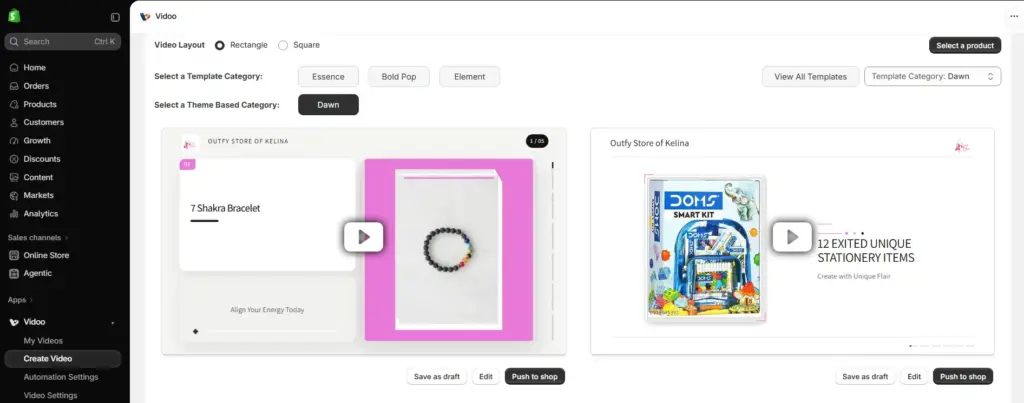
- Video Layout: Choose between Rectangle and Square formats for your video.
- Template Category: Browse available template styles, such as Essence, Bold Pop, and Element. You can also use the View All Templates button or the Template Category dropdown to explore the available options.
- Theme-Based Category: Choose a theme-based category to find templates designed for your selected Shopify theme. Currently, Dawn is available. More theme-based categories will be added in the future.
Select the categories that best suit your product and preferred video style.
Select a Product #
- Click Select a Product to open a pop-up displaying all products in your store.
- Choose the product you want to create a video for.
- Vidoo will automatically generate videos using all available or selected templates.
Preview and Choose a Video #
Browse through the generated videos and select the one you like best.
Save or Publish the Video #
- Save as Draft: The video will be stored in your Video Library for future review.
- Publish to Product Page: The video will be added to your Video Library and automatically uploaded to the selected product’s page.