AI Studio Automation helps you create and publish AI-powered content automatically. You can use it to create enhanced product visuals and brand-focused content based on your preferences, schedule, and connected social networks.
Unlike regular product post automation, AI Studio can create more engaging, AI-generated content instead of simply displaying your original product image.
How to create an AI Studio Automation #
Step 1: Open Automations
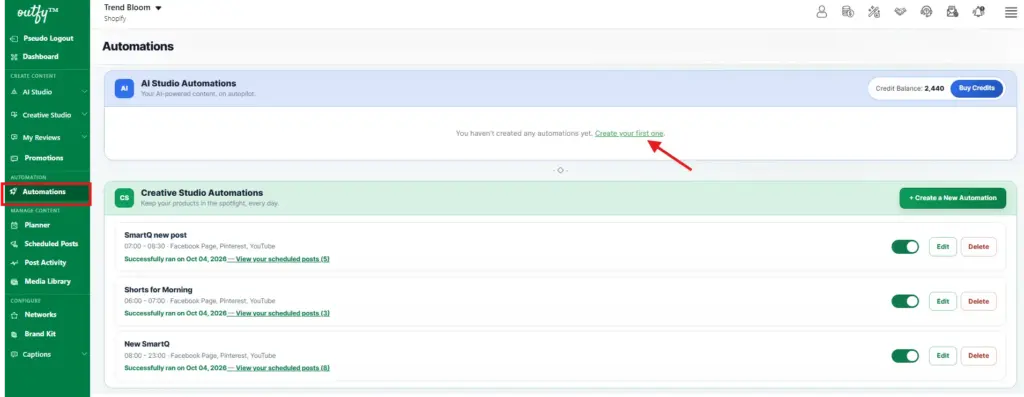
- Log in to your Outfy account.
- From the left-hand menu, go to Automations.
- In the AI Studio Automations section, click Create your first one.
Step 2: Add your Automation Name
On the Automation – AI Studio page, enter a name for your automation.
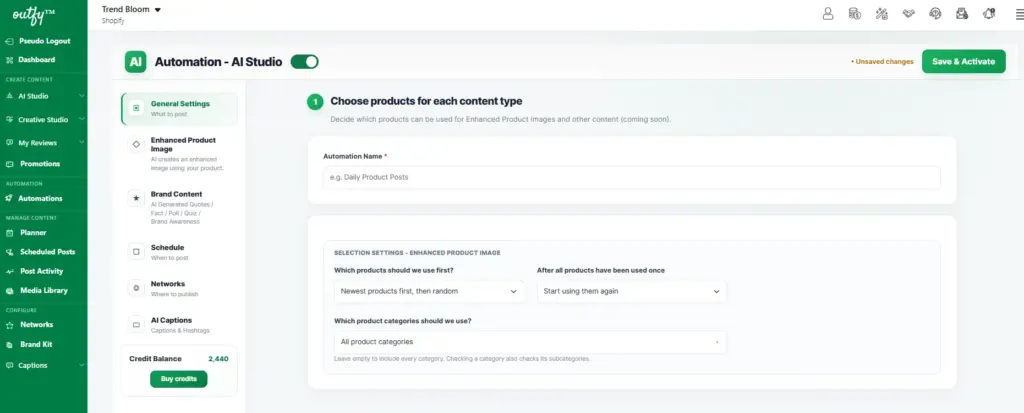
For example:
- Daily AI Content
- AI Product Posts
- AI Social Media Content
Choose a name that makes it easy for you to identify the automation later.
Step 3: Choose your products
Under General Settings, you can decide which products should be used for your AI-generated content.
1. Product selection settings
Choose how AI Automation should select products for your automation:
- Newest product first – Prioritize your latest newly added products.
- Random – Select products randomly from your eligible products.
2. After all products have been used once
Choose what AI Automation should do after all eligible products have been used:
- Start using them again – Reuse the eligible products and continue creating content.
- Stop creating this content type – Stop the automation once all eligible products have been used.
3. Which product categories should we use?
You can select specific product categories for your automation.
Step 4: Choose your AI content type
AI Studio Automation supports different types of AI-generated content. You can configure each content type separately using its own settings.
Enhanced Product Image uses AI to create enhanced visuals from your store products.
Brand Content creates AI-generated content focused on your brand rather than a specific product.
You can configure these content types independently based on the type of content you want to create.
Enhanced Product Image #
Enhanced Product Image uses AI to create visually engaging images from your store products. You can customize how often posts are created, the language used on images, branding, visual style, and the store information displayed on the generated content.
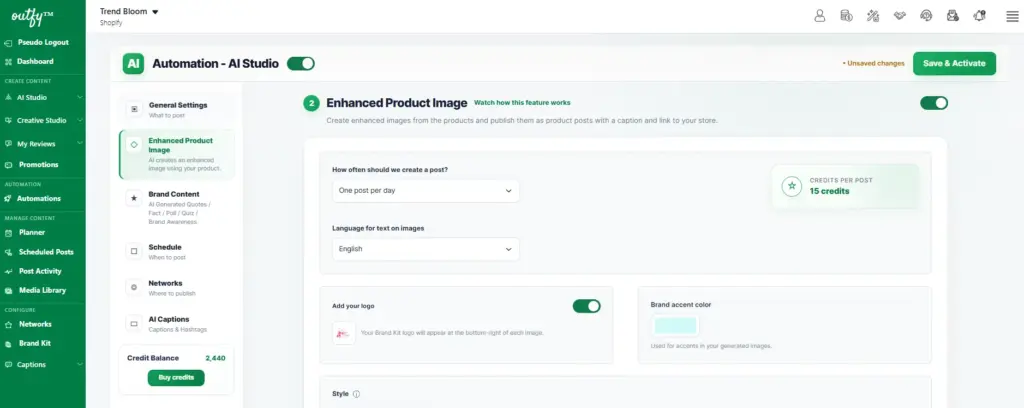
Choose how often to create a post
Under How often should we create a post?, choose how frequently Outfy should create Enhanced Product Image posts:
- One post per day – Create one Enhanced Product Image post every day.
- One post every two days – Create one post every two days.
- One post every three days – Create one post every three days.
The automation also displays the AI credits required per post, so you can see how many credits will be used for each generated image.
Choose the language
Under Language for text on images, select the language you want Outfy to use for the text generated on your images.
Customize your image branding
1. add your logo
Enable Add your logo to include your Brand Kit logo on your generated images.
Your logo will appear on the generated image according to the selected placement.
2. Brand accent color
Choose a Brand accent color to maintain your brand’s visual identity across AI-generated images.
Choose an image style
Select the visual style you want Outfy to use when generating your product images.
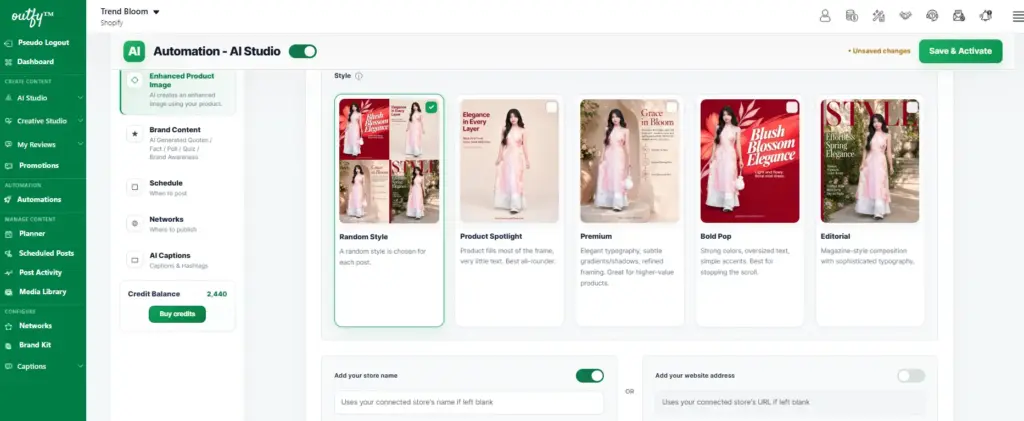
1. Random Style
A different style is randomly selected for each post.
2. Product Spotlight
Your product takes up most of the frame with minimal text. This creates a clean, simple, and product-focused look.
3. Premium
Uses elegant typography, subtle gradients or shadows, and refined framing for a sophisticated, premium appearance.
4. Bold Pop
Uses stronger colors, oversized text, and simple design accents to make your product content stand out.
5. Editorial
Uses a magazine-inspired composition with sophisticated typography and a polished editorial look.
Select the style that best matches your brand and the type of content you want to create.
Add your store information
You can add store information to your generated images to help customers identify your brand or visit your store.
1. Add your store name
Enable Add your store name to display your store name on the generated image.
You can enter a custom store name, or leave the field blank to use the name from your Brand Kit or connected store, depending on your settings.
2. Add your website address
Enable Add your website address to display your website URL on the generated image.
Note: You can include either your store name or your website address on the generated image.
Brand Content #
Brand Content creates AI-generated content focused on your brand rather than a specific product.
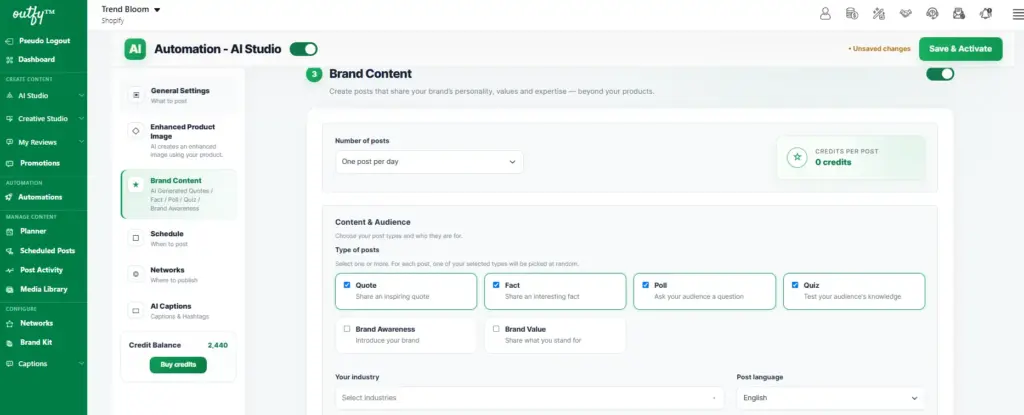
Choose the number of posts
Select how many Brand Content posts you want the automation to create.
Choose the number of posts
Select how many Brand Content posts you want the automation to create each day:
- One post per day – Create one Brand Content post each day.
- Two posts per day – Create two Brand Content posts each day.
- Three posts per day – Create three Brand Content posts each day.
The page also shows the AI credits required per
Choose your content types
Select one or more content types that you want Outfy to use when creating Brand Content posts. Different content types can help you keep your social media content varied and engaging.
Available content types include:
- Quote – Share inspiring, motivational, or industry-related quotes.
- Fact – Create informative posts featuring interesting facts related to your industry or audience.
- Poll – Create interactive posts that encourage your audience to share their opinions.
- Quiz – Create fun, engaging questions that encourage your audience to test their knowledge.
- Brand Awareness – Create content designed to introduce, highlight, and increase awareness of your brand.
- Brand Value – Create posts that communicate your brand’s values, mission, and what makes your business unique.
You can select one or multiple content types. If you select multiple types, Outfy can choose from your selected options when creating posts, helping keep your Brand Content varied and engaging.
Select your industry
Choose the industry that best matches your business.
This helps Outfy generate content relevant to your brand and audience.
Select your post language
Choose the language in which you want your Brand Content posts to be generated.
Configure Brand Content branding
You can customize how your brand appears in the generated content.
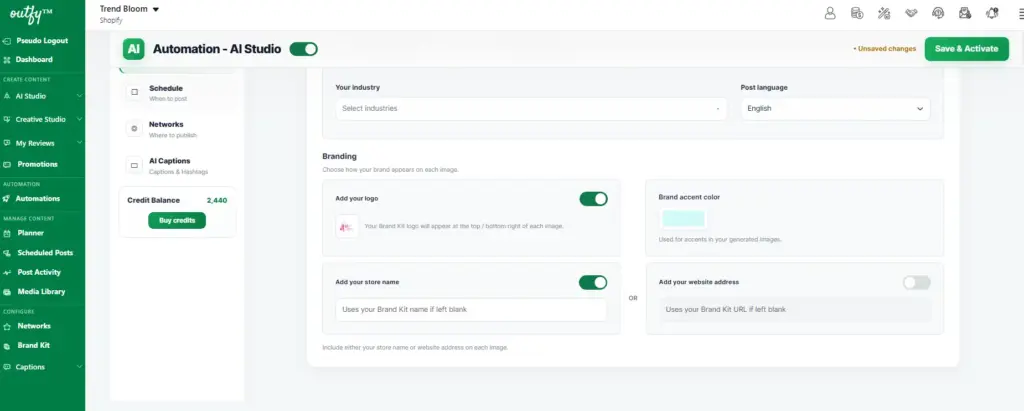
1. Add your logo
Enable Add your logo to include your Brand Kit logo.
2. Brand accent color
Select your preferred brand accent color for the generated images.
3. Add your store name
Enable Add your store name and enter your preferred store name.
If left blank, Outfy can use the name configured in your Brand Kit.
4. Add your website address
Alternatively, enable Add your website address to include your website URL.
If left blank, Outfy can use the URL configured in your Brand Kit.
Note: Brand Content creation is free for paid users. For Free plan users, each Brand Content post uses 2 AI credits.
Set your publishing schedule #
Go to Schedule to decide when your AI-generated content can be published.
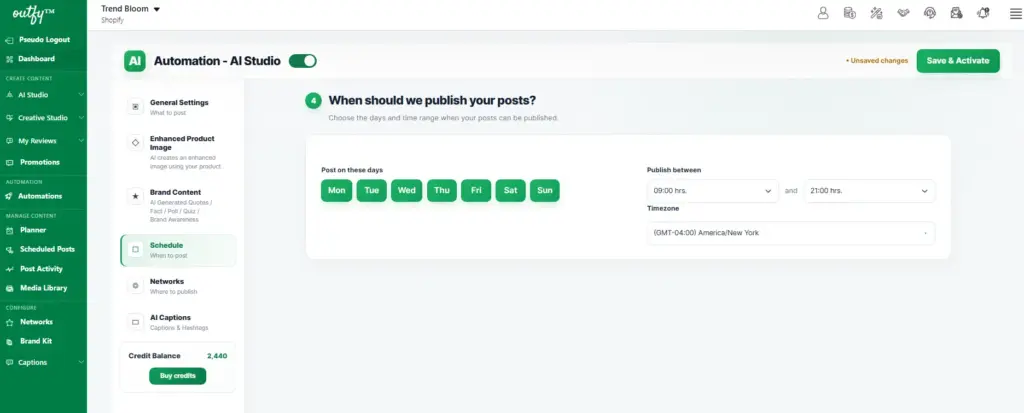
Select the days
Choose the days on which you want Outfy to publish your content.
You can select any combination of:
Monday, Tuesday, Wednesday, Thursday, Friday, Saturday, and Sunday.
Set the publishing time
Choose the time range during which Outfy can publish your posts.
For example:
9:00 AM – 9:00 PM
Select your timezone
Choose the timezone you want Outfy to use for your publishing schedule.
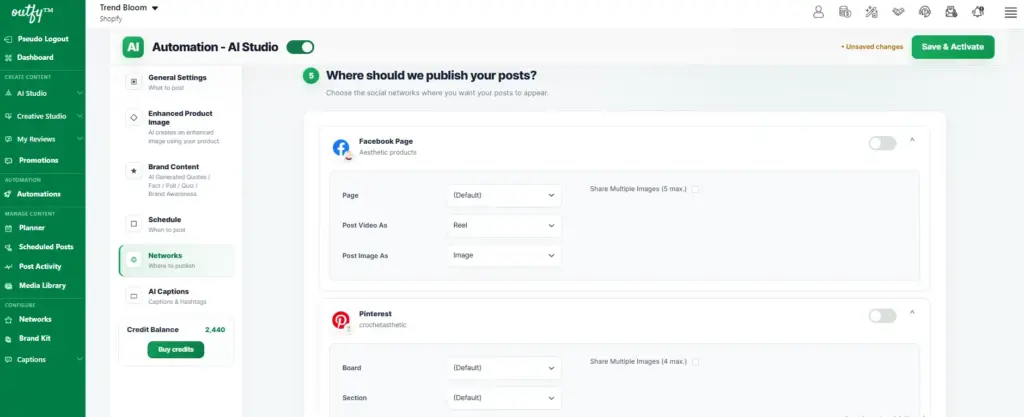
Select your social networks #
Go to Networks and select the connected social media accounts where you want your AI-generated content to be published.
Make sure the networks you want to use are already connected to your Outfy account.
Configure AI Captions #
Under AI Captions, customize how Outfy generates captions for your AI posts.
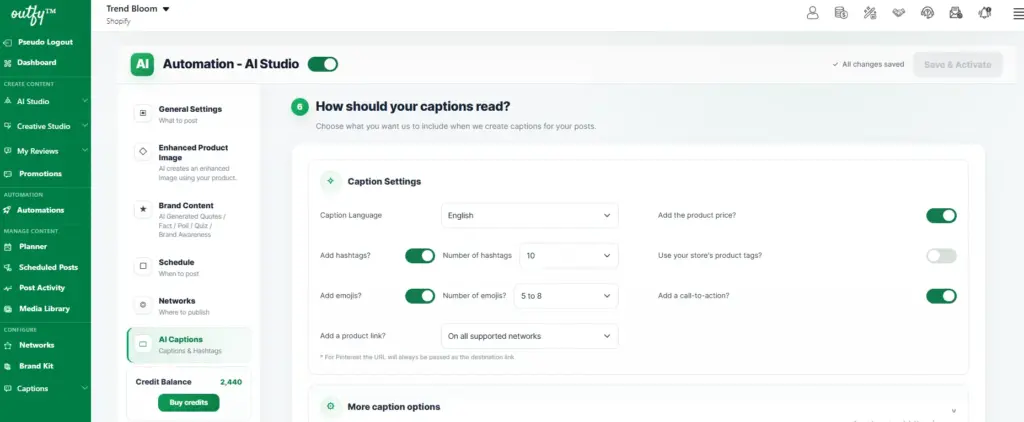
Caption Language
Choose your preferred caption language from the available options, including English, French, Spanish, German, Italian, Portuguese, Dutch, Polish, Swedish, and more.
Caption Settings
You can choose to:
- Add product price – Include the product price in the caption.
- Add hashtags – Add 1–10 hashtags.
- Use your store’s product tags – Include your existing product tags.
- Add emojis – Choose between 2–4 or 5–8 emojis.
- Add a call-to-action – Encourage your audience to take action.
- Add product link – Include the product URL when publishing to supported social networks.
Tip: Product links are handled according to each social network’s supported format.
More caption options
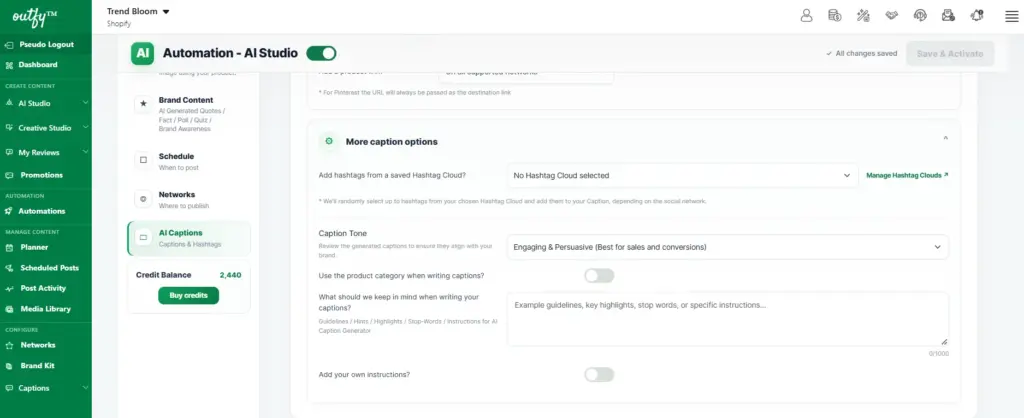
You can further customize your AI-generated captions with the following options:
Hashtag Cloud
Select a saved Hashtag Cloud to randomly add hashtags to your captions.
You can also select Manage Hashtag Clouds to create or edit your hashtag collections.
Caption Tone
Choose the tone that best matches your brand:
- Engaging & Persuasive
- Friendly & Casual
- Professional
- Playful & Fun
- Luxury & Elegant
Use product category
Enable this option to use the product category when generating captions.
Add your own instructions
Enter specific guidelines, hints, highlights, stop-words, or instructions for the AI Caption Generator.
You can add up to 1,000 characters.
Save and activate your automation #
Once you have finished configuring your AI Studio Automation:
- Review your settings.
- Make sure the content types you want to use are enabled.
- Click Save & Activate in the top-right corner.
Your AI Studio Automation is now active and will create and publish content according to your selected products, content settings, schedule, and social networks.