Introduction #
Product Collages allow you to design visually rich and highly customizable promotional content by combining images, text, buttons, and other creative elements into a single layout. They are perfect for showcasing multiple products, highlighting offers, or creating eye-catching social media posts.
With Outfy’s Collage Editor, you get full control over your design from layout selection to layering elements making it easy to create unique and professional collages that match your brand’s style.
Follow this step-by-step guide to create and share your product collages:
Edit Your Collage #
When you open the Collage section, you’ll first see a variety of auto-generated collage templates created using your product images.
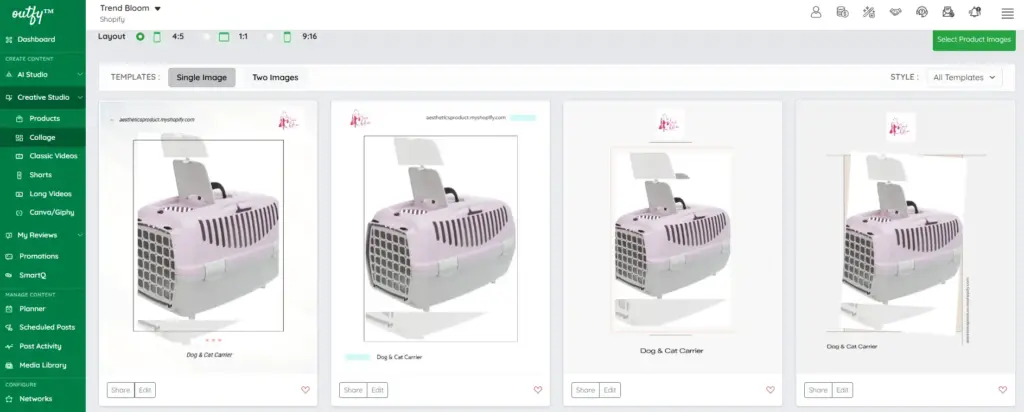
At the top, you can:
- Choose the layout ratio (4:5, 1:1, 9:16) depending on your posting needs.
- Switch between Single Image and Two Images templates.
- Select any style of templates (e.g., Aesthetic) from the dropdown.
- Click “Select Product Images” to change or add product visuals.
Each collage preview includes two options:
- Share – to directly publish the collage
- Edit – to open the full collage editor
Click Edit on any design to enter the editing screen, where you can fully customize every element of the collage.
Design Panel #
The editor opens with the Design tab, where you can:
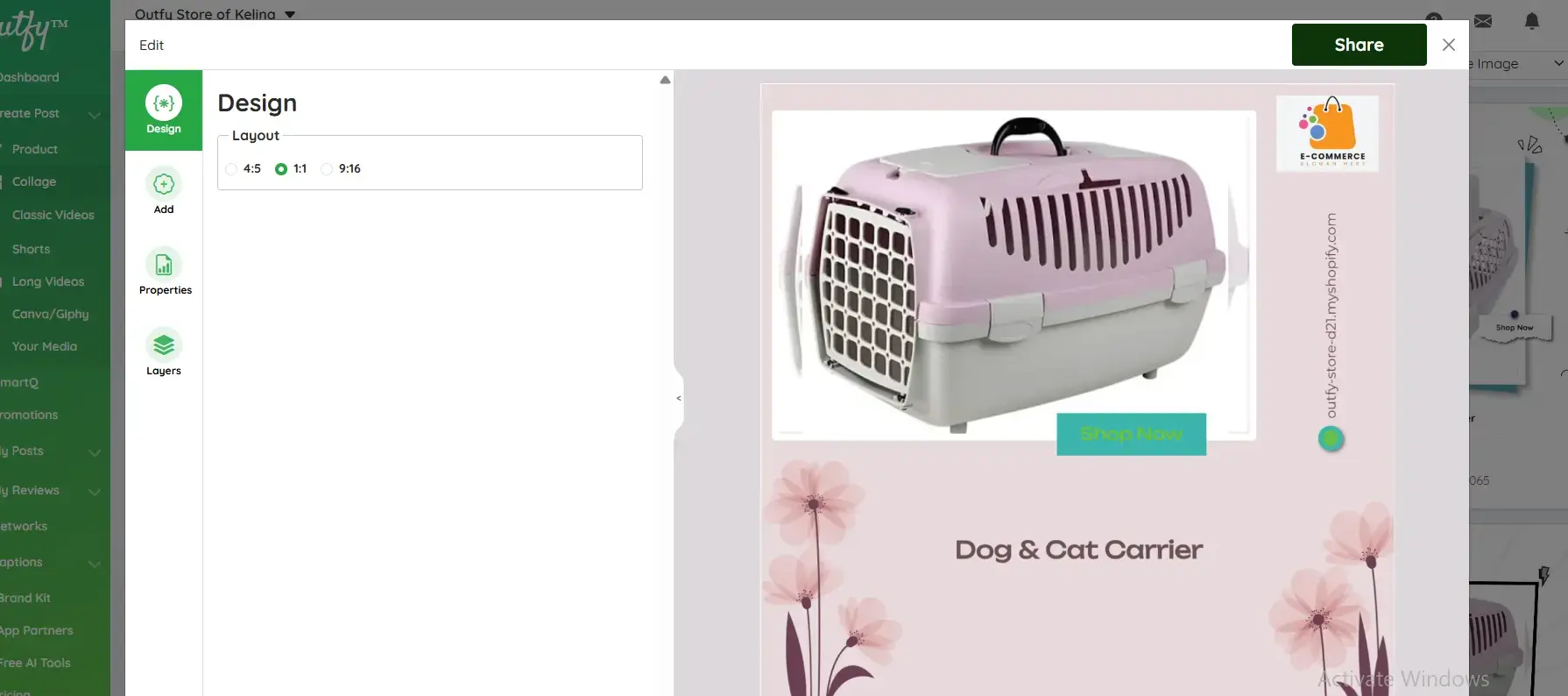
Choose Layout Ratio
- 4:5
- 1:1
- 9:16
Select the format depending on which platform you want to post (Instagram, Facebook, Pinterest, etc.).
Add Panel #
Under the Add tab, you can insert new elements into your collage:

Add Image
Upload or insert additional product or decorative images.
Add Multi-Line Text
Useful for descriptions, quotes, or product highlights.
Add Single Line Text
Use this for titles like “Sale”, “New Arrival”, or short captions.
Add Buttons
Add call-to-action buttons such as “Shop Now”.
Add Icons
Choose from icons like price tags, stars, arrows, and more to enhance your design.
Properties Panel #
When you click any element in the collage, the Properties tab lets you adjust:
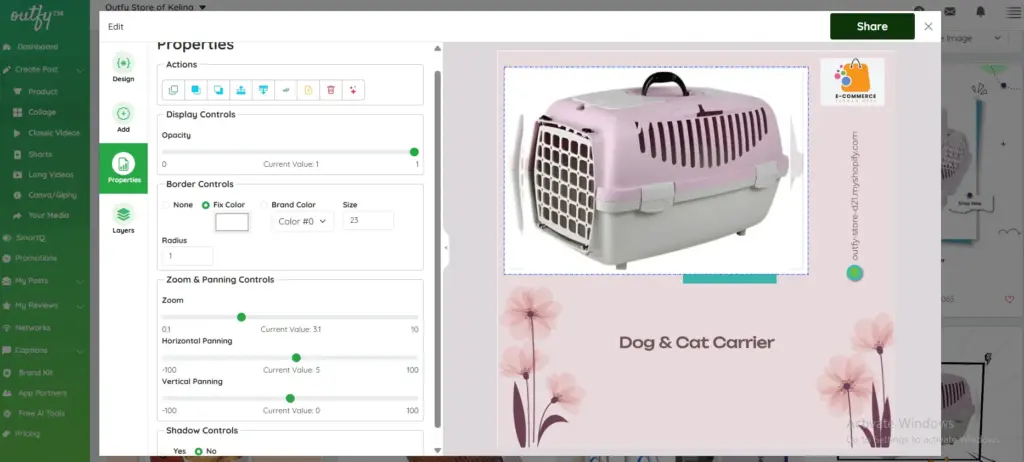
1. Actions
- Duplicate
- Bring forward / send backward
- Align left/right/center
- Lock/unlock elements
- Delete
2. Display Controls
- Adjust opacity
3. Border Controls
- Choose border color
- Border thickness
- Border radius
4. Zoom & Panning
Perfect for adjusting product image fit.
- Zoom in/out
- Horizontal panning
- Vertical panning
5. Shadow Controls
Add subtle shadows to make elements pop.
Layers Panel #
The Layers tab shows every component in your collage, such as:
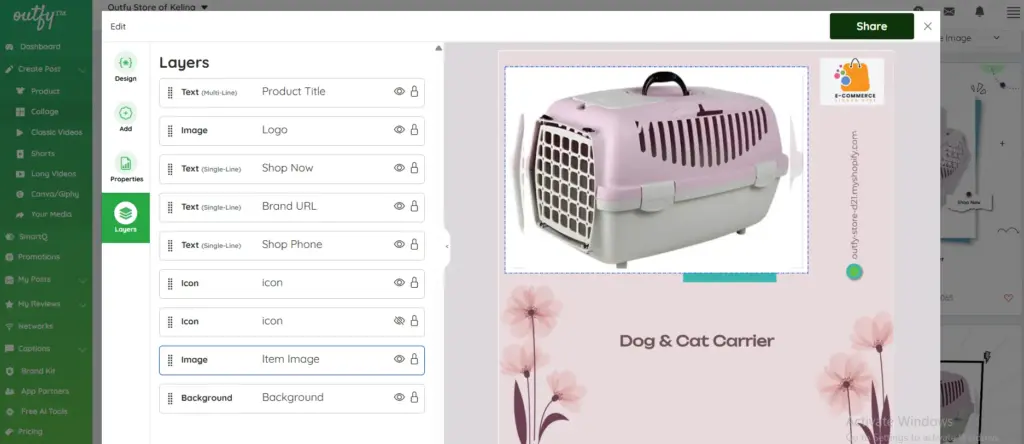
- Product Title
- Logo
- “Shop Now” button
- Brand URL
- Phone number
- Icons
- Product image
- Background
What You Can Do Here:
- Reorder layers
- Show or hide elements
- Lock elements to prevent accidental movement
- Select specific items easily without clicking on the canvas
This helps you manage complex designs quickly.
Share Your Collage #
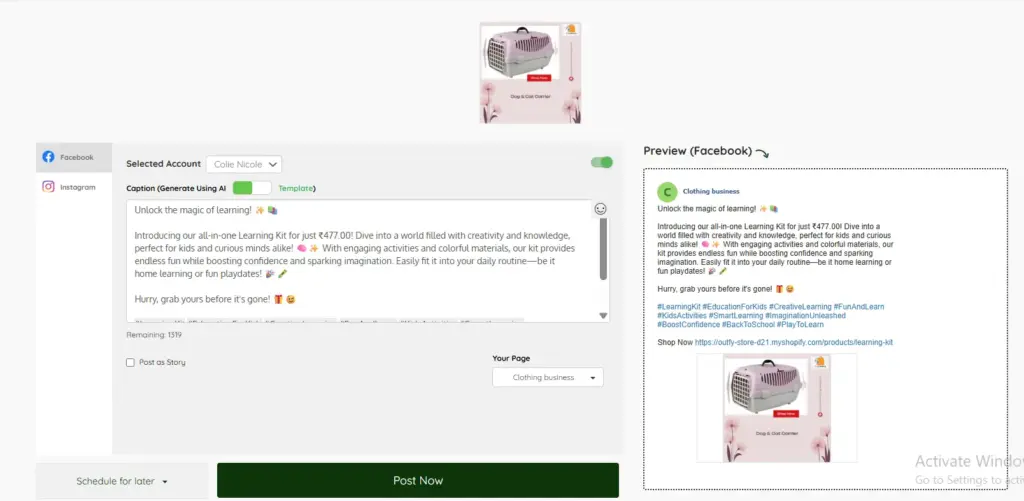
Once your collage is complete, simply click Share to publish it directly to your connected social networks.