Overview #
Outfy lets you connect your Bluesky account and manage your social media posting from one place. Once connected, you can use Outfy to share content with your Bluesky audience without switching between platforms.
Connecting Bluesky takes just a few steps. Enter your Bluesky account identifier, sign in, and authorize Outfy to access your account.
This guide explains how to connect your Bluesky account to Outfy.
Prerequisites #
Before connecting Bluesky, make sure:
- You have an active Bluesky account.
- You know your Bluesky handle or identifier.
- You have your Bluesky password available.
- You are using a desktop browser for the connection process.
- If you have multiple Bluesky accounts, make sure you enter the identifier for the account you want to connect.
Tip: If you are already signed in to a different Bluesky account, sign out first to avoid connecting the wrong account.
Steps to Connect Bluesky to Outfy #
Step 1: Open Outfy
Log in to your Outfy account and go to Networks from the left-hand menu.
Under the available social networks, select Bluesky.
Step 2: Add Your Bluesky Account
On the Bluesky connection page, click Add Bluesky Account.
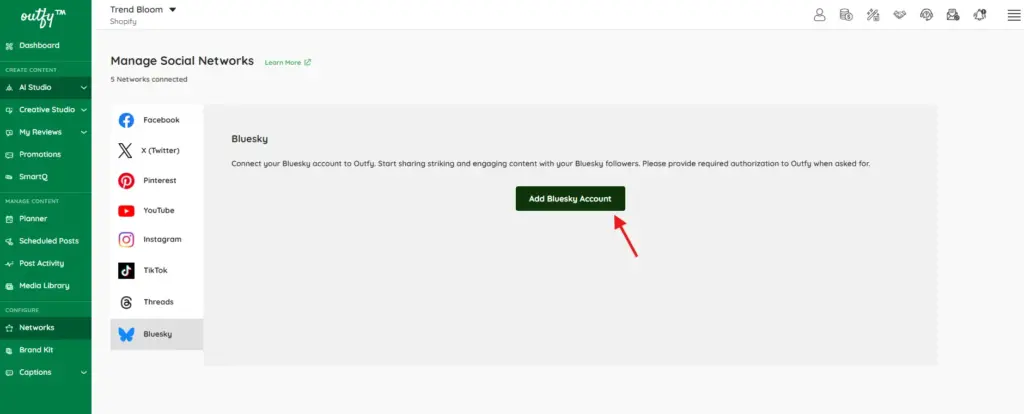
A connection window will appear where you can enter your Bluesky account details.
Step 3: Enter Your Bluesky Identifier
Enter your Bluesky identifier in the provided field.
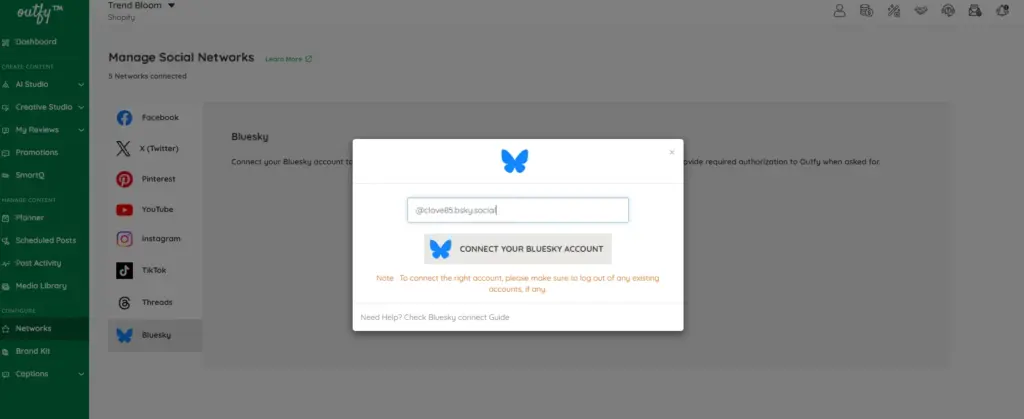
For example:
@yourusername.bsky.social
Once you have entered the correct identifier, continue with the connection process.
Step 4: Sign In to Bluesky
You’ll be redirected to the Bluesky sign-in screen.
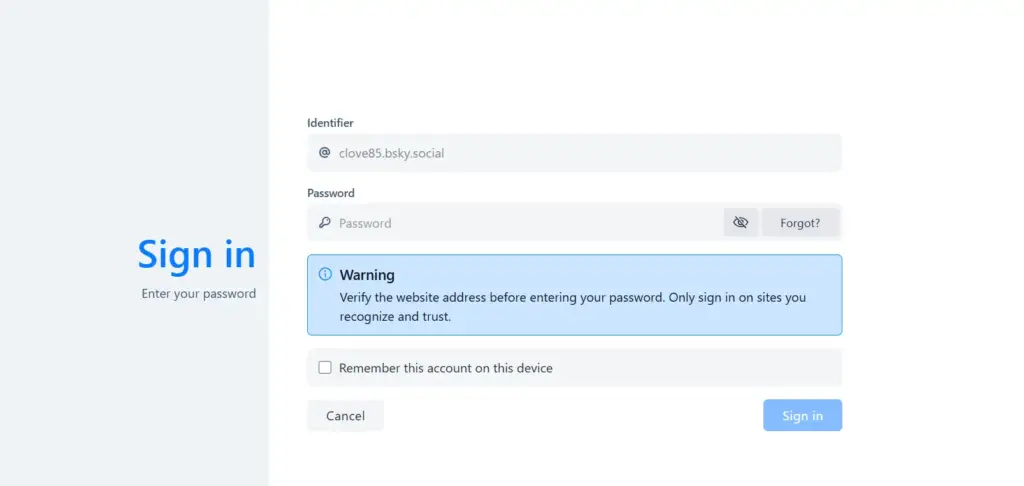
Enter your Bluesky password and click Sign in.
Make sure you are signing in to the account you want to connect to Outfy.
Step 5: Authorize Outfy
After signing in, Bluesky will ask you to authorize Outfy to access your account.
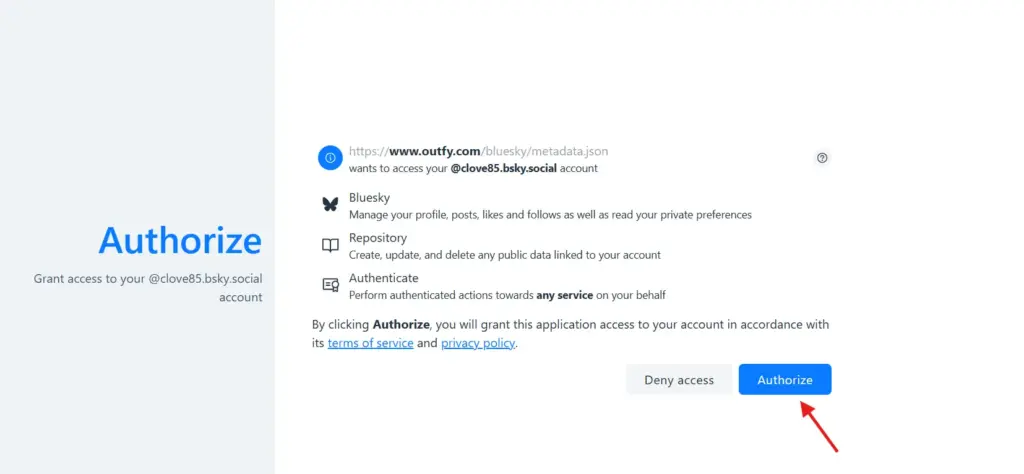
Review the permissions shown on the screen. These permissions allow Outfy to work with your Bluesky account and perform actions needed for posting.
Click Authorize to continue.
Step 6: Confirm the Connection
After authorization is complete, you’ll be redirected back to Outfy.
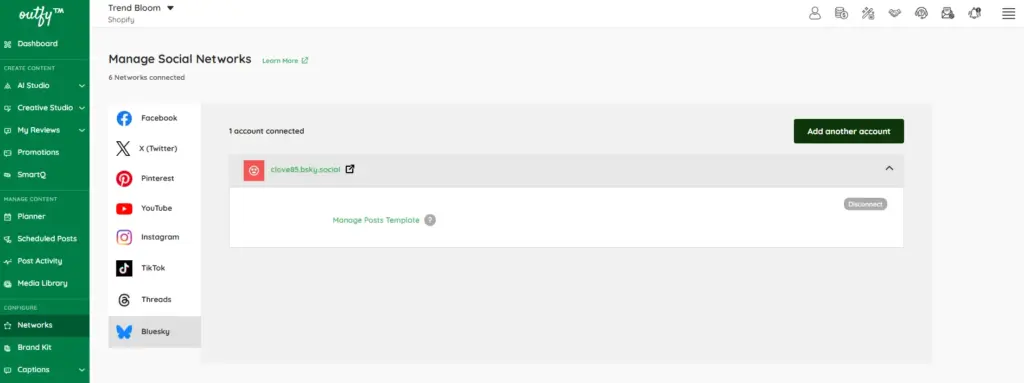
Your Bluesky account will now appear under Networks, confirming that it has been successfully connected.
You can also see options such as Manage Posts Template and Disconnect for the connected account.
Troubleshooting #
1. The wrong Bluesky account is connected
If Outfy connects to the wrong account:
- Go to Networks → Bluesky.
- Click Disconnect on the connected account.
- Sign out of the incorrect Bluesky account.
- Start the connection process again.
- Enter the identifier for the correct Bluesky account.
2. I can’t sign in to Bluesky
Make sure you are entering the correct Bluesky identifier and password.
If you cannot sign in directly to Bluesky, resolve the login issue with Bluesky first and then try connecting your account to Outfy again.
3. The authorization page does not appear
If the authorization page doesn’t load correctly:
- Refresh the page and try again.
- Make sure your browser is up to date.
- Try connecting from a private/incognito browser window.
- Temporarily disable browser extensions that may interfere with the connection.
4. The connection process gets stuck
If the connection appears to freeze or keeps redirecting you:
- Close the connection window.
- Log out of Bluesky.
- Clear your browser cache and cookies.
- Open a new incognito/private window.
- Log in to Outfy and try connecting Bluesky again.
5. Still unable to connect?
If you’re still having trouble, contact Outfy Support and provide:
- Your Outfy account details or user ID
- A description of the issue
- A screenshot of the error, if available
- The step where the connection fails
Our team can then investigate the issue further.
Frequently Asked Questions #
1. What information do I need to connect Bluesky to Outfy?
You need your Bluesky account identifier and password to complete the connection.
2. Do I need to authorize Outfy?
Yes. After signing in, Bluesky will display an authorization screen. Click Authorize to allow Outfy to connect with your account.
3. Can I connect more than one Bluesky account?
If your Outfy plan and account setup support multiple social accounts, you can use the Add another account option to connect additional Bluesky accounts.
4. How do I disconnect my Bluesky account?
Go to:
Outfy → Networks → Bluesky
Find the connected account and click Disconnect.
5. Can I reconnect my Bluesky account later?
Yes. After disconnecting the account, you can return to Networks → Bluesky and connect it again by following the same steps.
6. Is my Bluesky account connected immediately after authorization?
Yes. Once you complete the authorization process, you should be redirected to Outfy, where your Bluesky account will appear under the connected networks.