Overview #
The AI Videos feature in Outfy allows you to automatically generate promotional videos from product images using artificial intelligence. These videos can be used for social media marketing across platforms such as Instagram, Facebook, TikTok, and other supported networks.
You can generate videos by selecting a product image and customizing elements such as influencer characteristics, video layout, branding options, and language.
Generated videos can be downloaded or scheduled for posting using Outfy’s automation tools.
Accessing the AI Videos Feature #
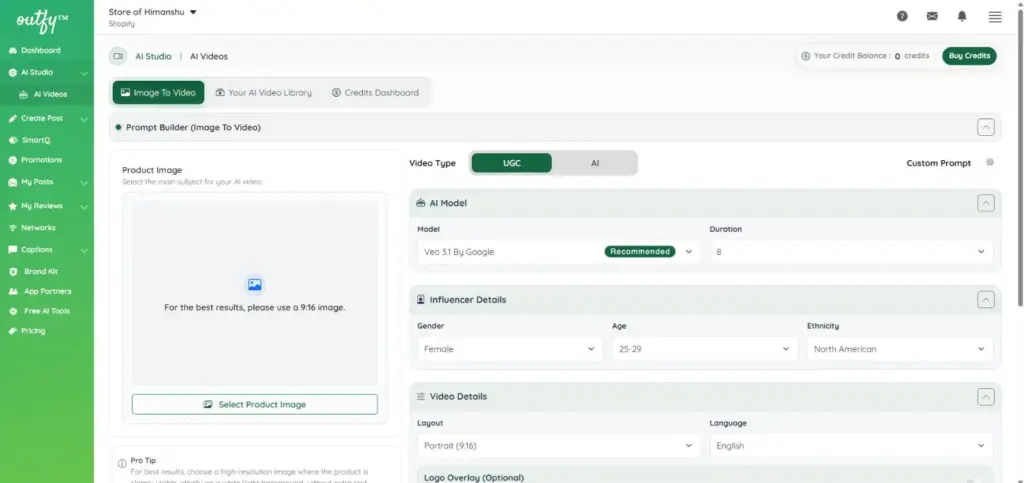
You can access the AI Videos tool from the Outfy dashboard by navigating to:
Dashboard → StudioAI → AI Videos
Within this section, you will see the following main options:
- Image to Video – Generate a new AI video using a product image
- Your AI Video Library – View previously generated AI videos
- Credits Dashboard – Check your AI video credit usage and balance
Creating an AI Video #
To generate an AI video, you must first select a product image that will be used as the primary subject of the video.
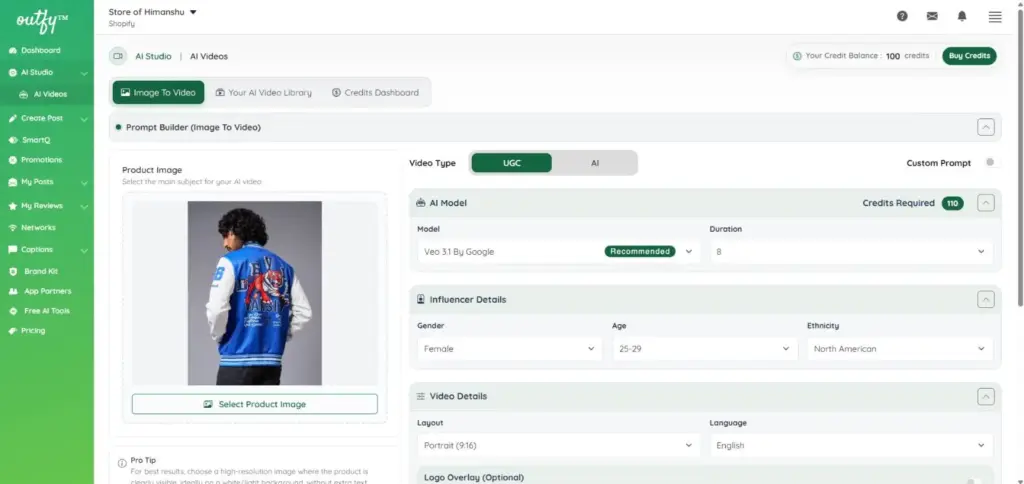
For best results, it is recommended to upload:
- High-resolution images
- Images where the product is clearly visible
- Images with a clean or light background
- Images without excessive text overlays
Clear product images allow the AI system to generate smoother motion and more realistic video results.
Video Type #
You can choose between two different AI video styles.
UGC (User Generated Content)
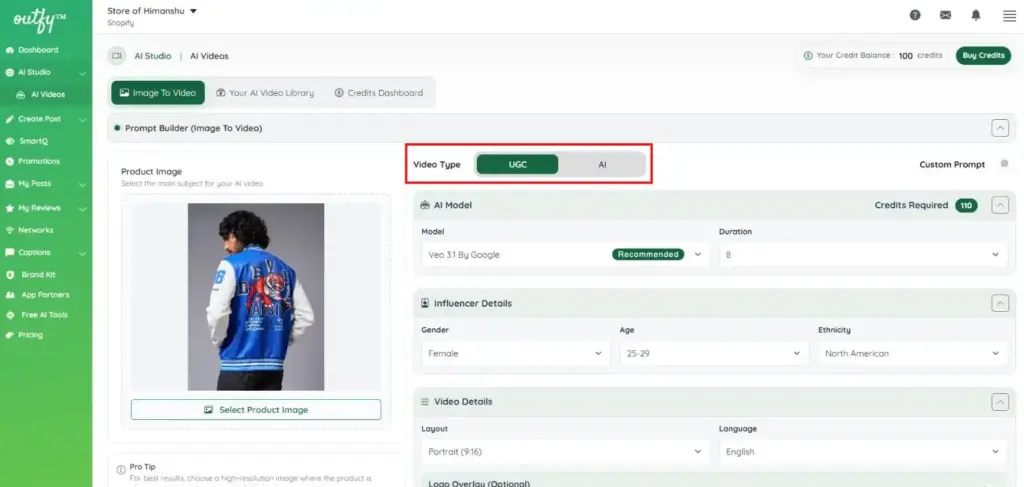
UGC videos simulate influencer-style promotional content. These videos feature an AI-generated influencer presenting or promoting your product.
You can customize influencer characteristics such as gender, age range, ethnicity, body type, and wardrobe style.
AI Video
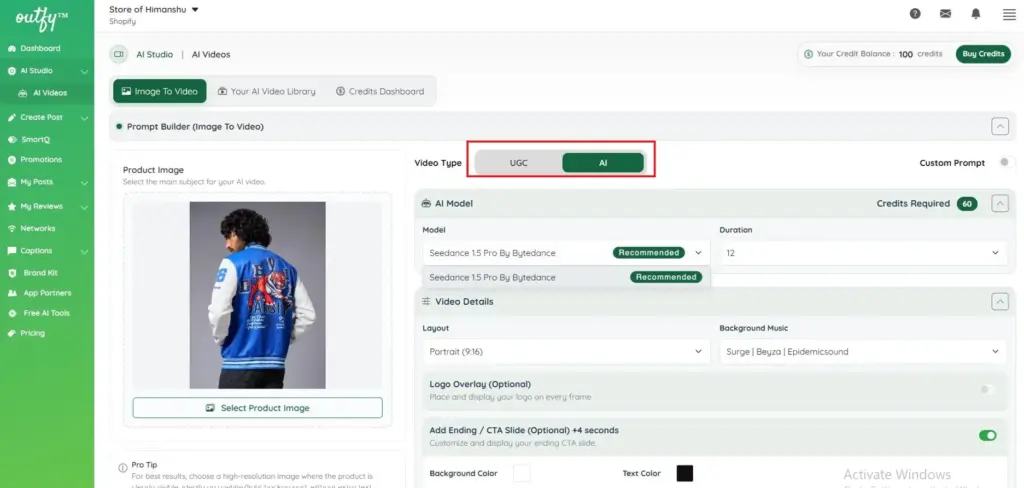
AI videos focus primarily on animated product presentation without an influencer-style format.
This option is suitable if you want simple promotional videos that highlight the product itself.
AI Models #
Outfy provides multiple AI models to generate your videos, each optimized for different styles, quality levels, and use cases. Selecting the right model can help you achieve better visual results and performance based on your needs.
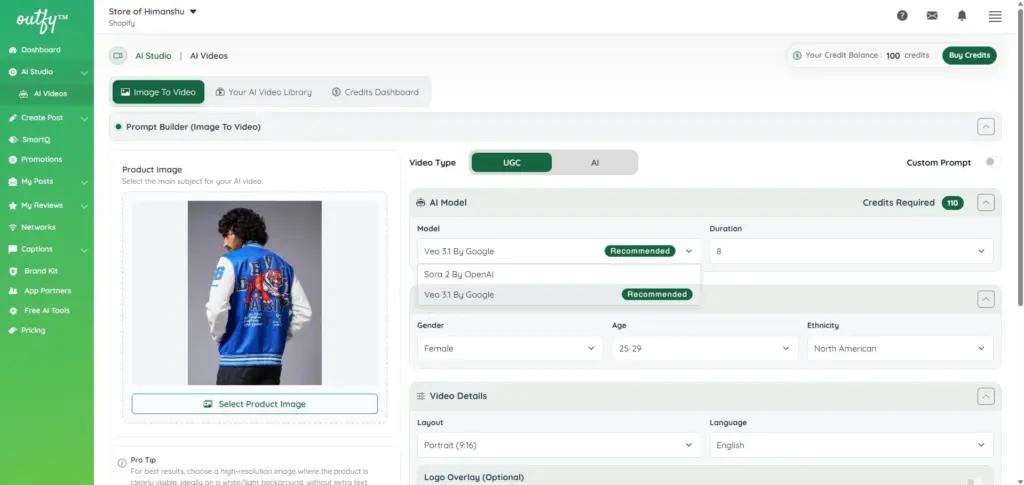
Available Models
Veo 3.1 by Google (Recommended)
This is the recommended model for most users and use cases.
- Produces high-quality, realistic video outputs
- Smooth motion and better visual consistency
- Ideal for both UGC (influencer-style) and product-focused videos
- Best choice for professional-looking promotional content
Sora 2 by OpenAI
An alternative model that offers a different rendering style and output.
- Suitable for experimenting with different visual styles
- Can produce creative and unique video variations
- May vary slightly in motion, transitions, or overall feel compared to Veo
UGC Influencer Customization #
When you select the UGC video type, you can configure influencer attributes to match your branding or target audience.
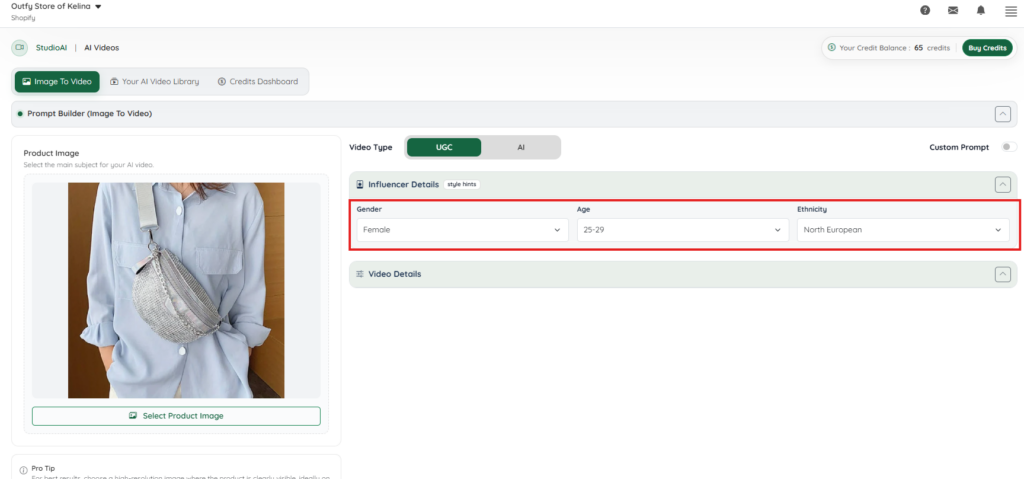
Available influencer settings include:
- Gender
- Age range
- Ethnicity
These settings allow the AI system to generate influencer-style promotional videos tailored to different audiences.
Video Details
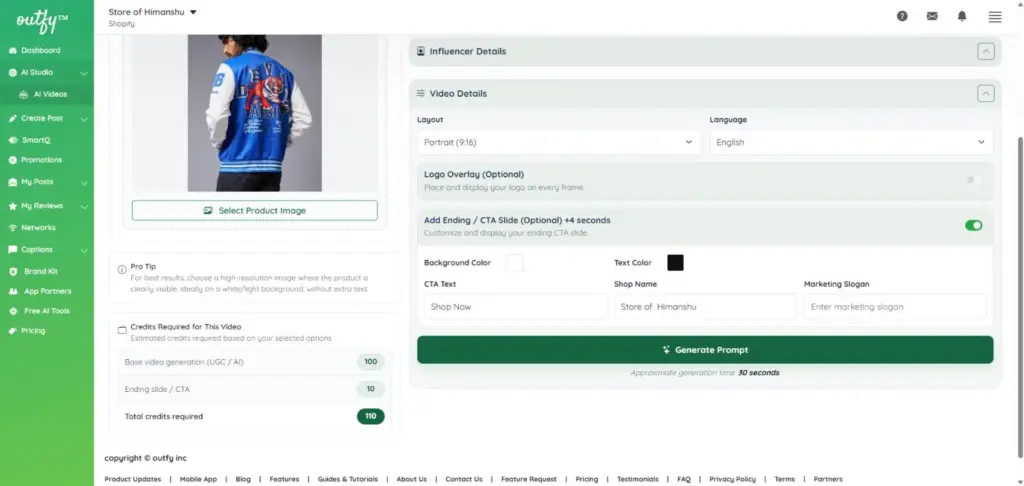
Layout
- Portrait (9:16): A vertical, mobile-first format optimized for Instagram Reels, TikTok, and YouTube Shorts. It keeps your product front and center for a more immersive, scroll-stopping experience.
Language
- Choose the language for your video to localize content and connect better with your target audience.
Logo Overlay (Optional): Add your brand logo to every frame for consistent branding.
- Placement: Select where your logo appears (e.g., bottom right) to keep it visible without distracting from the product.
CTA Slide (Optional): Add a strong call-to-action at the end of your video to drive conversions.
- CTA Text: Customize messages like Shop Now, Buy Today, or Learn More.
- Shop Name: Display your store name for brand recall.
- Marketing Slogan: Add a short tagline to reinforce your message.
- Background Color & Text Color: Adjust colors to match your brand identity and ensure readability.
These settings help you create polished, on-brand videos that not only look good but also encourage viewers to take action.
Generate a Video
After customizing your UGC video settings, click on Generate Prompt. This step creates the script and structure for your video based on your inputs.
On the Prompt page, you can review and adjust key sections:
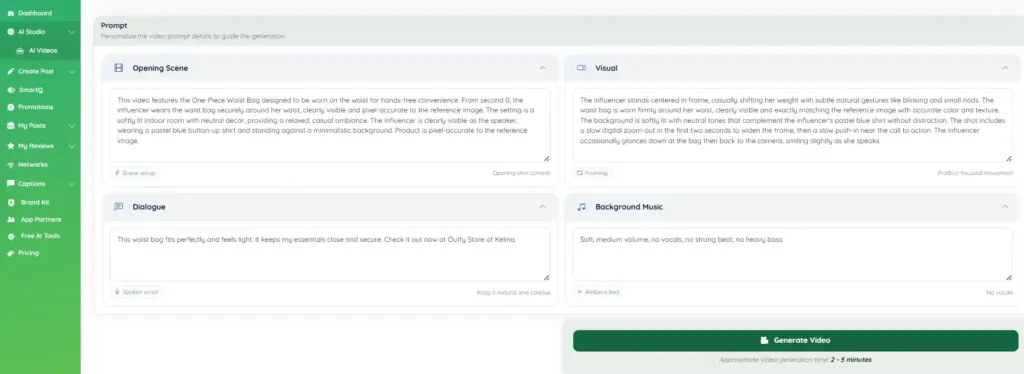
- Opening Scene – Describes how the video starts, including the setting and product placement.
- Visual – Controls how the product and influencer appear, including positioning, movements, and camera behavior.
- Dialogue – The spoken script or message delivered in the video. You can edit the dialogue to match your tone or keep it natural and improvised.
- Background Music – Sets the tone of the video with music preferences like style and intensity.
Once everything looks good, click on Generate Video.
A confirmation pop-up will appear, briefly informing you that the video is generated using third-party AI models and that results may vary. Click Continue to proceed.
Your UGC video will then be generated and will be ready shortly.
AI Video Details #
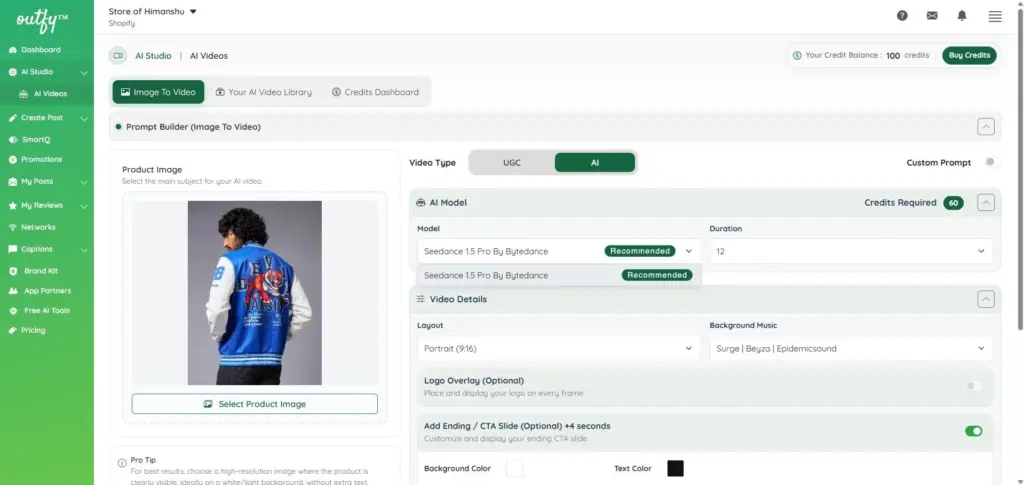
Available AI Model
To generate an AI video, you must first select an AI model. Seedance 1.5 Pro by ByteDance is available, offering high-quality video generation with advanced capabilities for creating detailed and engaging visuals from simple prompts.
Duration
Select the duration of your video based on your content needs and platform, with shorter videos for quick impact and longer ones for more detailed storytelling.
Video Details
Customize your video settings to enhance visual appeal, branding, and overall impact.
Layout
- Portrait (9:16): A vertical format optimized for mobile viewing on platforms like Instagram Reels, TikTok, and YouTube Shorts. It ensures your content fills the screen and captures attention quickly.
- Background Music: Select a music track to set the tone of your video. The right audio can make your content more engaging and emotionally appealing.
Logo Overlay (Optional): Display your logo across all frames to maintain consistent branding.
- Placement: Choose where your logo appears (e.g., bottom right) so it stays visible without distracting from the product.
CTA Slide (Optional): Add a compelling ending slide to drive user action.
- CTA Text: Use clear action phrases like Shop Now or Buy Today.
- Shop Name: Reinforce your brand identity.
- Marketing Slogan: Add a short, catchy message to support your product.
- Background Color: Customize the CTA background to match your brand style.
- Text Color: Ensure high contrast for readability and visual appeal.
These options help you create professional, branded videos that not only look great but also encourage conversions.
Generate a Video
After customizing your AI video settings, click on Generate Prompt. This step creates the script and structure for your video based on your inputs.
On the Prompt page, you can review and check the details of each section:
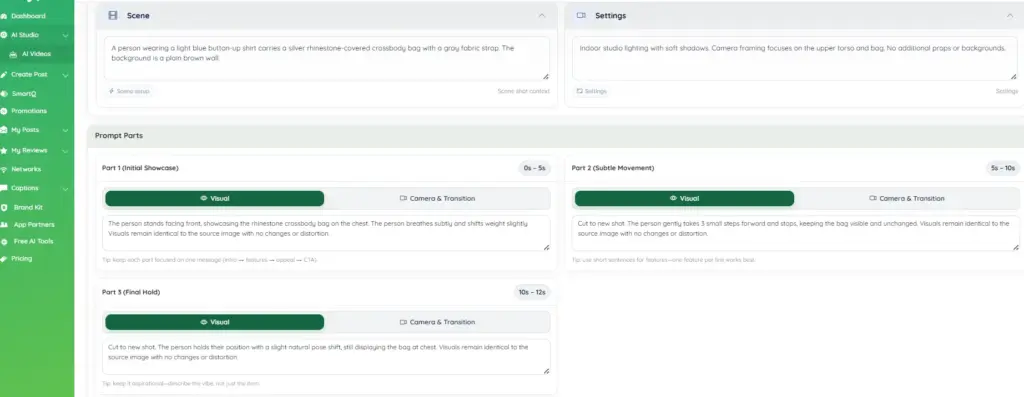
Scene – Describes the overall setup of the video, including the subject, product, and background.
Settings – Controls the environment details such as lighting, framing, and overall visual style.
Part 1 (Initial Showcase) – The opening segment where the product is introduced clearly and kept in focus.
Part 2 (Subtle Movement) – Adds natural movements to make the video feel more dynamic while keeping the product visible.
Part 3 (Final Hold) – The closing segment where the product remains steady for a final view.
Each part includes:
Visual – Defines what is happening in the frame, including positioning and movements.
Camera & Transition – Controls camera behavior like cuts, angles, and transitions between scenes.
Once everything looks good, click on Generate Video.
A confirmation pop-up will appear, briefly informing you that the video is generated using third-party AI models and that results may vary. Click Continue to proceed.
Your AI video will then be generated and will be ready shortly.
Custom Prompt #
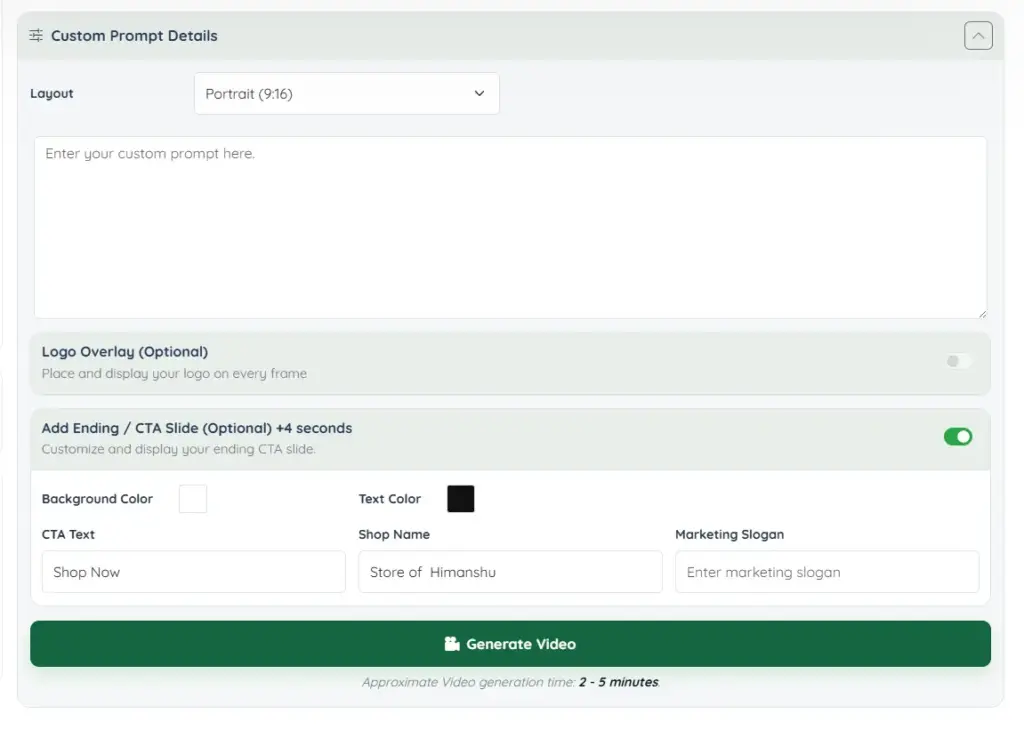
Using Custom Prompt
If you want more control over your video, you can enable Custom Prompt.
- Toggle Custom Prompt on
- Enter your own prompt describing how you want the video to look or what the influencer should say
- Customize the layout if needed
Note: If you select UGC and enable Custom Prompt, the AI influencer will speak the message written in your custom prompt within the video. This allows you to create personalized product promotions with your own messaging.
Example prompt: “Hi everyone! I recently discovered this amazing product and I absolutely love it. It’s super easy to use and perfect for everyday life. You should definitely check it out!”
Custom prompts allow you to create unique, personalized, and more engaging video content.
AI Video Library #
All your generated videos are stored in the AI Video Library.
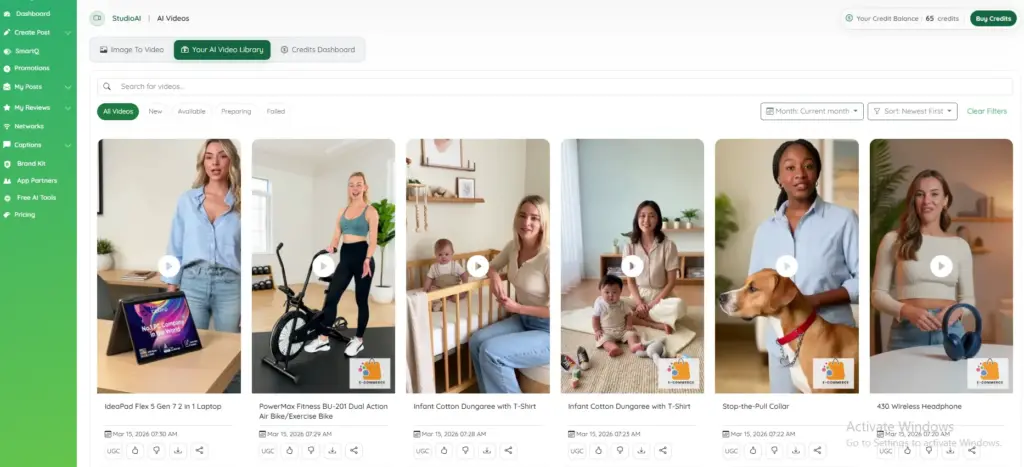
From this section, you can:
- View previously generated videos
- Download videos
- Use them in social media posts
- Schedule them using Outfy automation tools
Credits System #
The AI Videos feature operates using a credit-based system. Credits are required each time you generate a video.
You can view your current credit balance in the AI Videos section or the Credits Dashboard.
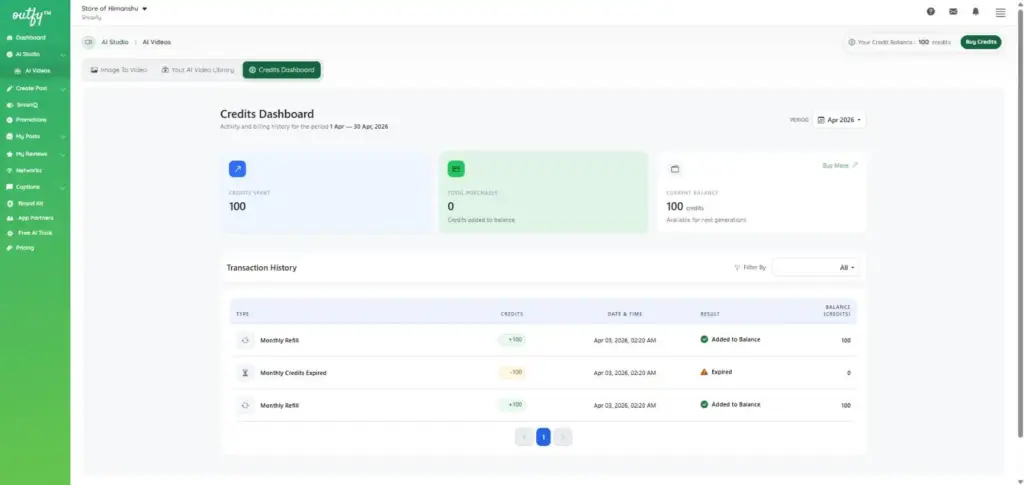
CREDITS FOR AI VIDEOS #
1. Monthly Credits for Eligible Plans
If you are subscribed to the Ultimate plan or higher, you are eligible to receive AI video credits on a monthly basis. This applies to both new and existing users on these plans.
The credits are automatically added to your account every month.
2. Monthly Credit Expiry
The monthly credits provided with the Ultimate plan or higher must be used within the same month.
If you do not use the credits during that month, they will expire and will not carry forward to the next month.
At the start of every month:
- New credits will be issued
- Any unused credits from the previous month will be removed
3. Discounted Plans
If you are subscribed to a heavily discounted plan, you are not eligible to receive monthly AI video credits.
To use AI video generation, you can either:
- Purchase credits separately, or
- Upgrade to the original Ultimate plan (or higher) to receive monthly credits
4. Purchased Credits
Credits that you purchase separately do not expire on a monthly basis.
Unlike monthly plan credits, purchased credits remain in your account until they are used.
5. Credit Usage Priority
When both monthly credits and purchased credits are available in your account, the system may use the monthly credits first, since they expire at the end of the billing cycle.
6. Credit Availability
You can view your available credit balance from:
- The AI Videos page, or
- The Credits Dashboard within the Outfy platform
Buying Credits for AI Videos #
If you’ve used all your available credits, you can easily purchase more to continue creating AI videos.
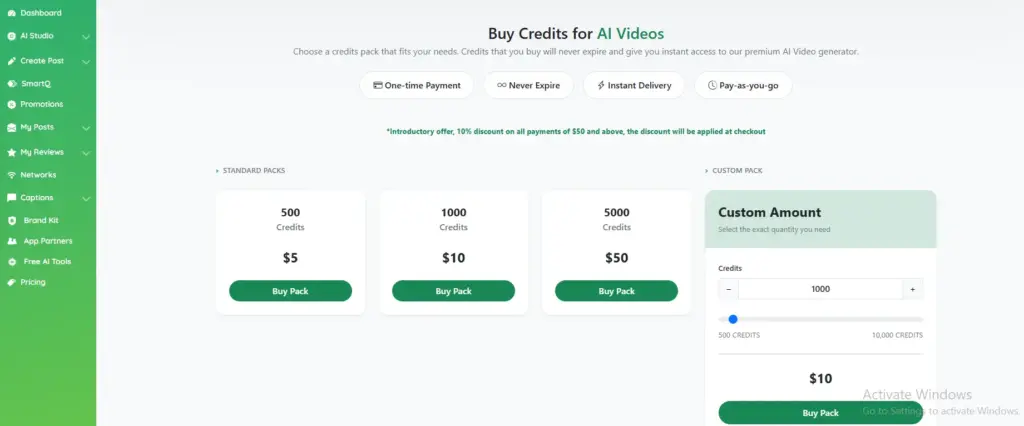
How to Buy Credits
- Go to the top-right corner of your dashboard.
- Click on “Buy Credits”.
- You’ll be taken to the Buy Credits page (shown above).
- Choose a credit pack and click “Buy Pack” to complete your purchase.
Available Credit Packs
We offer simple, one-time payment options:
- 500 Credits – $5
- 1000 Credits – $10
- 5000 Credits – $50
All credit purchases:
- Never expire
- Are delivered instantly
- Work on a pay-as-you-go basis
Custom Credit Pack
If you need a specific number of credits, you can use the Custom Amount option:
- Navigate to the Custom Amount section on the right side of the page.
- Adjust the number of credits using:
- The + / – buttons, or
- The slider
- The price will update automatically based on your selection.
- Click “Buy Pack” to proceed with your custom purchase.
Tip: Discounts may apply automatically at checkout for larger purchases.


