The Automation Settings page lets you configure how Vidoo automatically generates and updates product videos for your store.
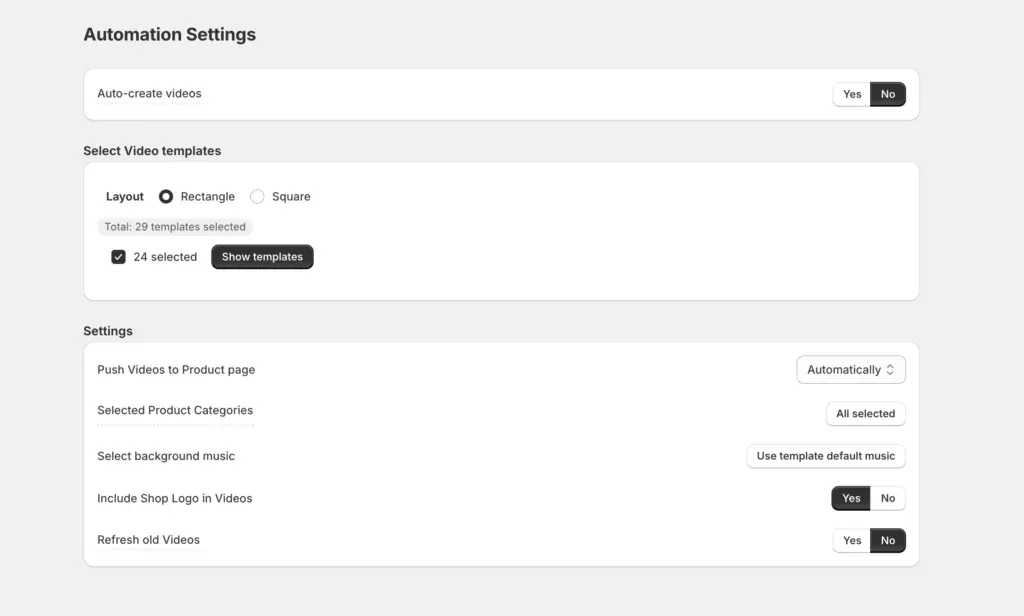
Auto-Create Videos #
Field: Auto-Create Videos (Yes / No)
Description: Enable or disable automatic video generation.
Tip: Vidoo will create videos automatically based on your current plan
Select Video Templates #
Description: Opens a pop-up with all available video templates. Choose templates that best match your store’s theme and style.
Tip: You can select multiple templates or choose all to ensure videos remain varied and avoid repetition.
Push Videos to Product Page #
Description: When enabled, newly created videos are automatically added to the corresponding product pages. The other options is to approve the videos before pushing to your store.
Tip: Keep this on for full automation — Vidoo will handle publishing for you.
Selected Product Categories #
Field: Select Categories
Description: Define which product categories Vidoo should use to auto-generate videos.
Tip: Vidoo automatically picks products from these categories each day for new video creation.
Include Shop Logo in Videos #
Description: Adds your store’s logo to every video for consistent branding.
Tip: Combine with your Brand Kit (fonts, colors, and music) for a unified visual identity.
Select Background Music #
Description: Choose background music to apply to your automatically generated videos
Tip: Pick a tone that matches your store’s vibe — energetic for fashion, calm for lifestyle, etc. or leave it as the template default to avoid being monotonous
Refresh Old Videos #
Field: Refresh Old Videos
Description: After all products have videos, Vidoo automatically updates older ones using new templates.
Tip: This keeps your product videos fresh, aligned with new styles and templates.


